
No Cable · No Cloud · No Account
Send Files from Android to PC Wirelessly
Install PlainApp on your Android phone, connect your phone and computer to the same Wi-Fi or hotspot, then open the address shown in the app. Download phone files or upload from your PC browser — no desktop app required.
Android 9.0+ app required · Same Wi-Fi or hotspot · Windows, Mac or Linux browser
Download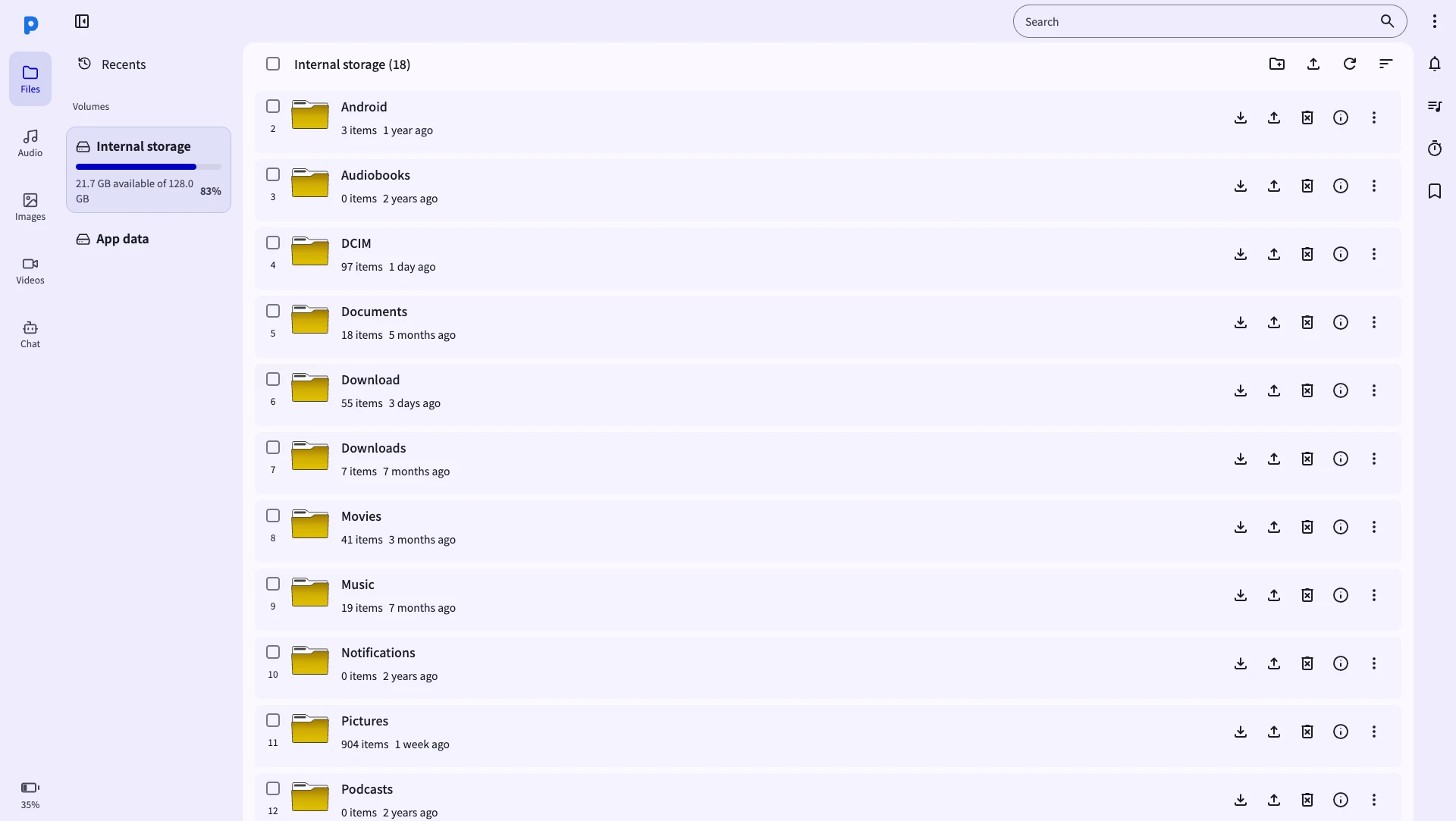
How to send files from Android to PC
Install on Android first. The computer only needs a browser and a connection to the same local network.
- 1
Install PlainApp on your Android phone
Get PlainApp for Android from Google Play, F-Droid or GitHub. Connect your phone and PC to the same Wi-Fi, or connect the PC to your phone’s hotspot.
- 2
Open PlainApp and tap "Start"
Start the local service and find the address displayed in the app. Use that actual address rather than copying an example IP from a guide.
- 3
Open the URL in your PC browser
Enter the exact address in a modern browser on Windows, Mac or Linux. If it will not open, check the shared network and guest-network isolation; use the troubleshooting guide below.
- 4
Go to "Files" and start transferring
Open Files. To copy phone files to the computer, select them and choose Download. To send computer files to Android, use Upload or the upload area. Confirm the destination folder before starting a large transfer.
When browser-based file transfer fits
Use PlainApp to browse and transfer Android files on your local network without installing a desktop client. It needs a reachable local connection; it is not a built-in remote file-access service.
- No app-imposed transfer quota; speed depends on your network and devices
- Works from any browser on Windows, Mac, or Linux
- Transfer multiple files and folders at once
- Access internal storage, SD card, and USB drives
- Encrypted local browser connection; verify the address shown on your phone
Everything you can do with the file manager
Browse phone storage
Navigate your Android internal storage, SD card, and connected USB drives from a full-screen browser UI.
Upload from PC to phone
Drag and drop files or use the file picker to send documents, photos, and videos from your computer to your Android phone.
Download from phone to PC
Select any file or folder on your phone and download it straight to your PC — photos, videos, APKs, anything.
Copy, move, rename, delete
Full file management — copy, cut, paste, rename, move, and delete files directly from the browser.
Preview photos and videos
View images and play videos inline without downloading them first. Stream media directly from your phone.
Batch operations
Select multiple files and transfer or manage them all at once. Supports ZIP creation from the browser.
Frequently Asked Questions
How do I send files from Android to PC without a USB cable?
Install PlainApp on your Android phone, tap Start, then open the displayed URL in your PC browser. Navigate to Files, select the files you want, and click Download. No cable required — just Wi-Fi.
Does Android to PC file transfer require an internet connection?
No. PlainApp works entirely on your local Wi-Fi network. Your files never touch the internet — they go directly from your phone to your PC.
Can I transfer photos from Android to PC in bulk?
Yes. In the Files or Photos section, select multiple items and batch-download them. You can also navigate to the DCIM folder and download photos by folder.
Does PlainApp work on Windows 11 / Mac?
Yes. PlainApp requires no software on the PC — just a modern browser like Chrome, Edge, Firefox, or Safari. Works on Windows 10/11, macOS, and Linux.
Can I access my phone files from outside my home network?
PlainApp is designed for local network use only. For remote access you can configure a VPN, but this is not officially supported. Local-only design is what keeps it secure and private.
Take back control of your phone.
No cloud middleman. No monthly fees. Just your phone and your browser.