
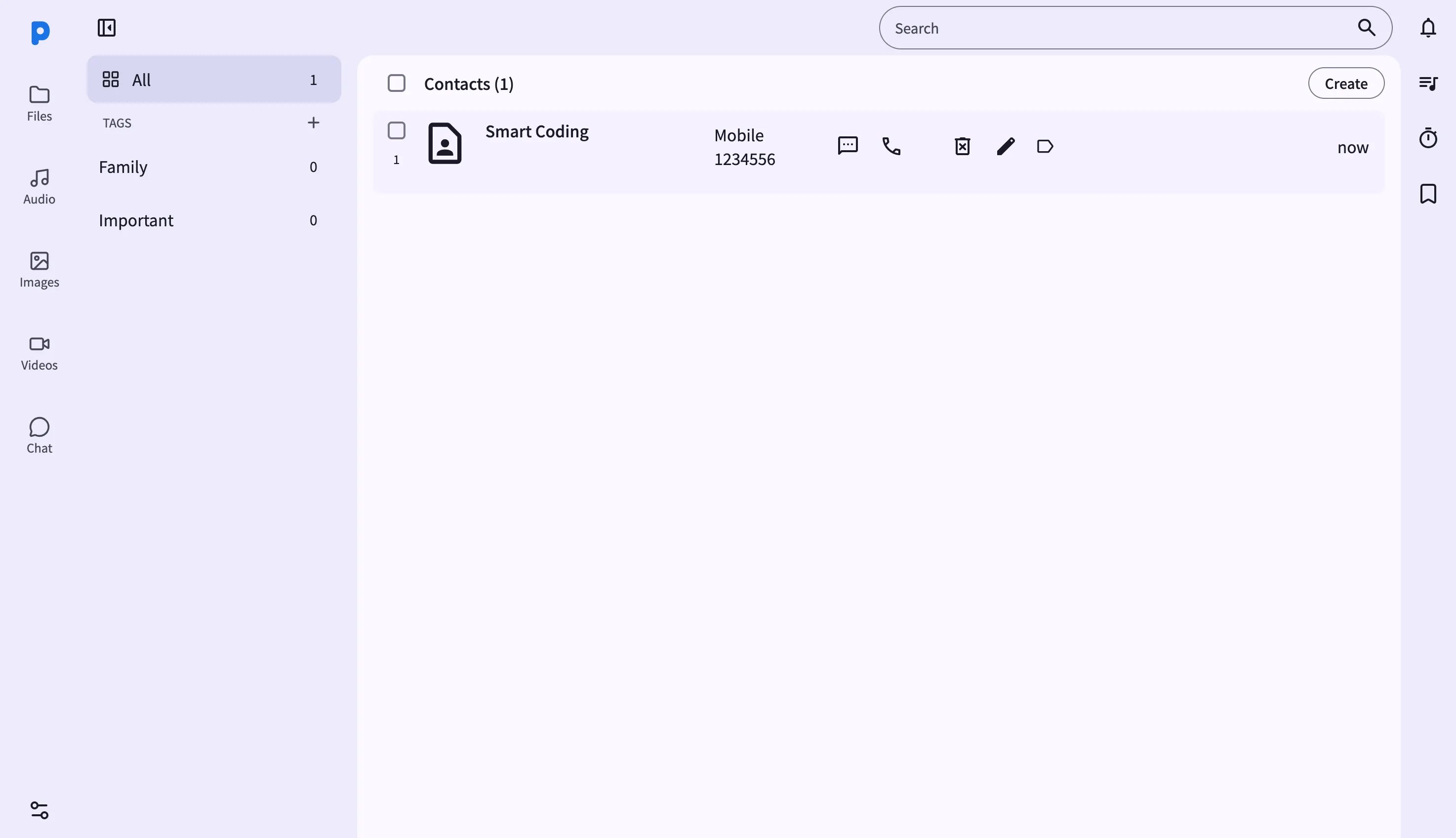
The Contacts view in the web dashboard is the only place PlainApp lets you manage your phone's address book — there's no equivalent screen on the phone itself. Open the dashboard in any browser on the same Wi-Fi network and every contact appears in a scrollable list with its photo, phone numbers, emails, addresses, websites, and any custom tags you've applied.
Because the dashboard talks to the phone's own contacts provider over an encrypted local connection, every read and write happens on the real device. Calling a number from the browser doesn't open a "tel:" link on your computer — it tells the phone to place the call itself, so the call goes out over your actual cellular line while you dial from the keyboard.
Key capabilities
- Full contact details, not just a name and number — each row expands to show every phone number, email, physical address, website, IM handle, and event (like a birthday) stored for that contact.
- Call straight from the browser — click the call icon next to any phone number and PlainApp tells the phone to dial it immediately, no dialer popup, with a loading spinner on that number until the call connects.
- Send SMS from the browser — click the message icon next to a number to open a compose window and send a text through the phone's SIM.
- Bulk tagging and bulk delete — check multiple contacts (or use "select all" across a search result that spans pages) to tag or delete them in one action.
- Create and edit contacts — the same modal handles new contacts and edits, writing straight back to the phone's contacts provider so other apps on the device see the change immediately.
- Search across the whole address book — the search box filters by name, number, or other fields as you type, with pagination for large contact lists.
Walkthrough
- Open the Contacts page from the dashboard sidebar. The list loads with the total contact count shown at the top.
- Search — type a name or number into the search box; the list filters as you type.
- Call or text — next to any phone number, click the call icon to have the phone dial it, or the message icon to compose an SMS.
- Select multiple contacts — use the checkboxes (Shift-click for a range) to bulk-tag or bulk-delete.
- Create a contact — click Create in the top bar, fill in the form, and save. The new contact is written to the phone's contacts provider right away.
- Edit a contact — open the edit action on any row to update its details in the same form used for creating contacts.
Tips & tricks
- Use "select all" when your search matches more contacts than fit on one page — it selects every matching contact, not just the visible ones, before you bulk-tag or delete.
- Calls are placed by the phone, so normal carrier rates and your SIM apply — the browser is just the remote control.
- Tag contacts the same way you tag files or notes; the tag list is shared across PlainApp's data types, so a "Work" tag can group contacts alongside related notes or files.
Privacy & security notes
- The web dashboard is served over HTTPS with a self-signed certificate, with all traffic further encrypted with XChaCha20-Poly1305 layered on top of TLS.
- The web dashboard binds to your local network only — it is not reachable from the internet unless you explicitly set up port forwarding.
- Edits, calls, and messages are dispatched to the phone's own contacts and telephony providers — there is no cloud address book or call log involved.
Related features
- SMS & Messages in the Web Dashboard — the full conversation view the message icon opens into.
- File Management in the Web Dashboard — browse the phone's storage from the same dashboard.
- Encrypted P2P Chat on Android — another way to reach people directly from PlainApp.