
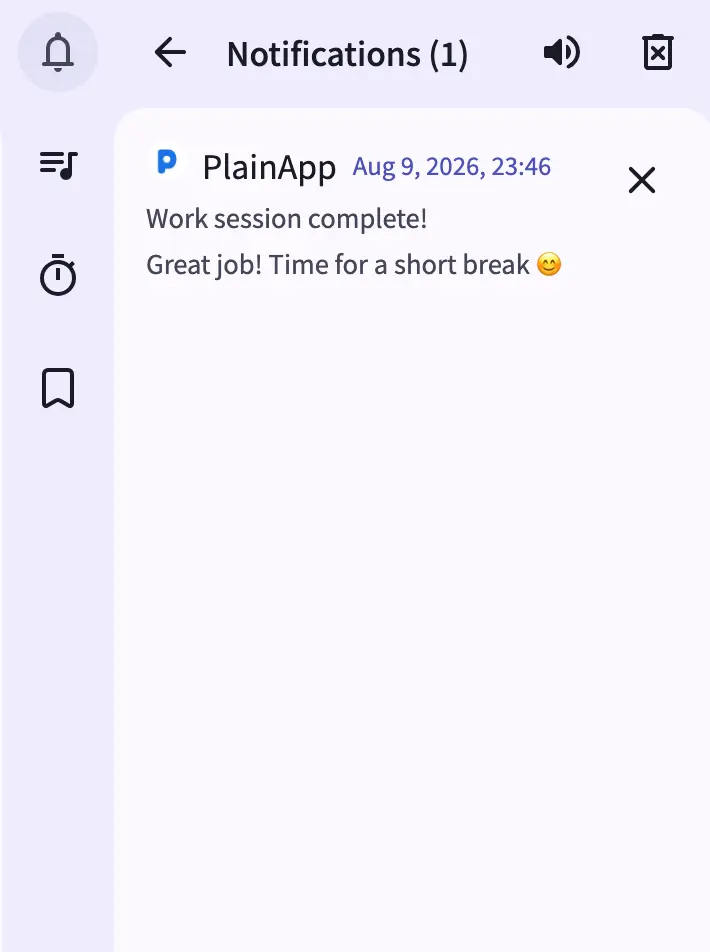
The Notifications panel in the web dashboard mirrors every notification your phone receives, live, in any browser on the same network. Open it from the header and you get a stack of cards — one per notification — with the app icon, title, body, and any reply actions the source app exposed.
Because the panel is pushed updates the moment a notification is created, updated, or dismissed on the phone, you can leave your phone in another room and still triage messages, reminders, and alerts from your laptop — right down to replying inline, without picking the phone up at all.
Key capabilities
- Live notification cards — each card shows the source app's icon, name, title, body, and timestamp, updating in real time as notifications arrive, change, or get dismissed on the phone.
- Inline reply — messaging notifications that expose a reply action (like a chat message) show one or more reply buttons; tap one to open a text box, type, and send — the reply is delivered back through the source app on the phone.
- Desktop popup + sound — a new notification can trigger both a desktop notification popup and a short sound, with a volume control right in the panel header.
- Dismiss one or clear all — the X on a card dismisses just that notification on the phone; the header's clear-list button dismisses everything at once.
- Permission warning indicator — if the phone's notification-listener permission isn't granted, a warning icon appears in the header with a one-click action to fix it.
Walkthrough
- Open the Notifications panel from the header. It lists every current notification, most recent first.
- Read a card — app icon, title, body, and how long ago it arrived are all shown together.
- Reply inline — if a card shows reply buttons, click one to open the reply box, type your message, and send it straight to the source app.
- Dismiss a card by clicking the X — the notification disappears here and on the phone.
- Clear everything with the clear-list button in the header when your list gets long.
- Adjust or mute the sound with the volume control next to the clear button.
Tips & tricks
- Click a notification's app icon to expand a raw details view — handy if you're debugging why a particular reply action isn't showing up.
- If the warning icon appears in the header, click it — it tells you exactly which permission is missing and offers a button to open the right settings screen.
- Keep the panel open in a pinned browser tab while you work; new notifications surface with a popup and sound without you having to check back.
Privacy & security notes
- The web dashboard is served over HTTPS with a self-signed certificate, with all traffic further encrypted with XChaCha20-Poly1305 layered on top of TLS.
- The web dashboard binds to your local network only — it is not reachable from the internet unless you explicitly set up port forwarding.
- Notification content is relayed directly from the phone to your browser; no third-party push service is involved.
Related features
- Encrypted P2P Chat in the Web Dashboard — a separate chat surface for direct messages between PlainApp devices.
- SMS & Messages in the Web Dashboard — the full conversation view for SMS, distinct from the notification mirror.
- File Management in the Web Dashboard — the same real-time-push pattern applied to the on-device file system.