
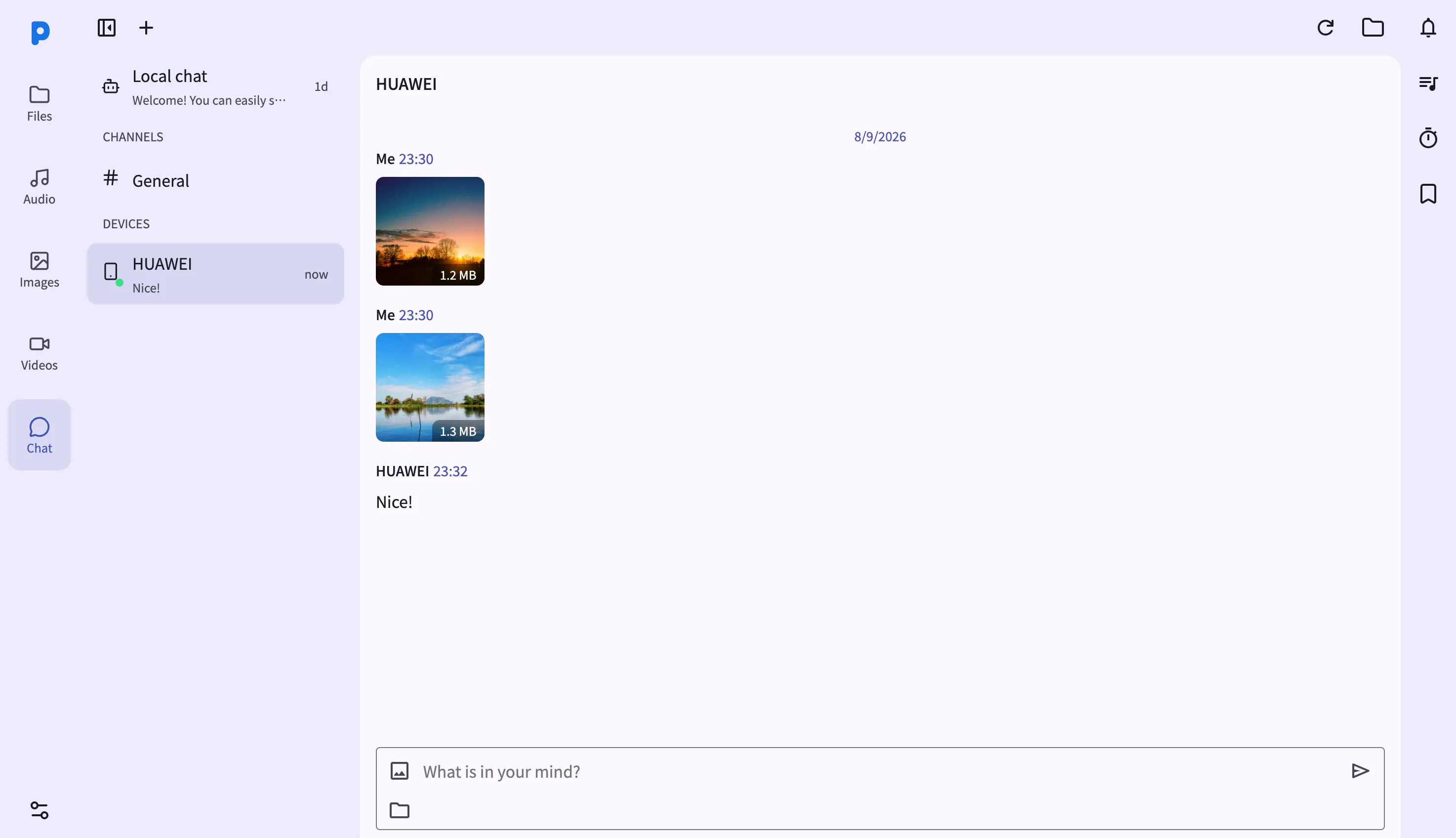
The Chat view in the web dashboard brings PlainApp's peer-to-peer messenger to any browser on the same network. The layout is a familiar two-pane: peer list on the left, conversation on the right. Pick a peer or a channel from the list and the conversation loads with message bubbles, file attachments, and an encryption banner at the top of the pane.
The phone hosts the chat session; the browser is a remote UI for it. When you send a message, the phone encrypts it with the peer's key and transmits it over the best available transport. When a message arrives, the phone decrypts it and pushes it to the browser over a WebSocket. Your laptop never holds the peer's encryption keys — those stay device-bound.
Key capabilities
- Two-pane layout — peer and channel list on the left, active conversation on the right. Resize the panes to taste.
- Multi-peer support — every paired peer and every joined channel appears in the sidebar. Switch between conversations without losing your place.
- File attachments — click the attachment button to send a file. Files are encrypted on the phone before transmission.
- Channel invites — accept or decline channel invitations from the sidebar. Channel messages are encrypted for every member individually.
- Delivery status — each sent message shows pending, sent, or failed. Click a failed message to open the delivery status modal and retry.
Walkthrough
- Open the Chat page from the left sidebar. The peer list loads with paired peers, unpaired peers, and any channels you've joined.
- Select a peer from the sidebar. The conversation pane loads with the message history, most recent at the bottom.
- Send a message — type in the input bar at the bottom and press Enter or click Send. The message appears in the pane with a delivery status indicator.
- Attach a file — click the attachment button to pick a file from your computer. The file uploads to your phone, gets encrypted, and is sent to the peer.
- View channel invites — pending channel invitations appear at the top of the sidebar. Click Accept to join or Decline to dismiss.
Tips & tricks
- Long messages (over 2048 characters) are sent as encrypted text files automatically — paste a long block of text and PlainApp handles the rest.
- The URL updates with the active conversation ID, so you can bookmark a direct link to a specific peer or channel.
- If a peer shows as offline in the sidebar, click refresh in the web header to force a reconnect on the phone.
Privacy & security notes
- The web dashboard is served over HTTPS with a self-signed certificate, with all traffic further encrypted with XChaCha20-Poly1305 layered on top of TLS.
- The web dashboard binds to your local network only — it is not reachable from the internet unless you explicitly set up port forwarding.
- Messages are end-to-end encrypted with XChaCha20-Poly1305. Encryption and decryption happen on the phone; the browser only sees already-decrypted message text for display.
- Each device signs its messages with an Ed25519 key. Signatures are verified on the phone before the message is pushed to the browser.
- There is no central server in the chat path at any point.
Related features
- Encrypted P2P Chat on Android — the on-phone chat UI the dashboard mirrors.
- File Management in the Web Dashboard — pick files to attach to chat messages from the Files view.
- Notification Mirror in the Web Dashboard — chat delivery failures surface in the notifications panel.