
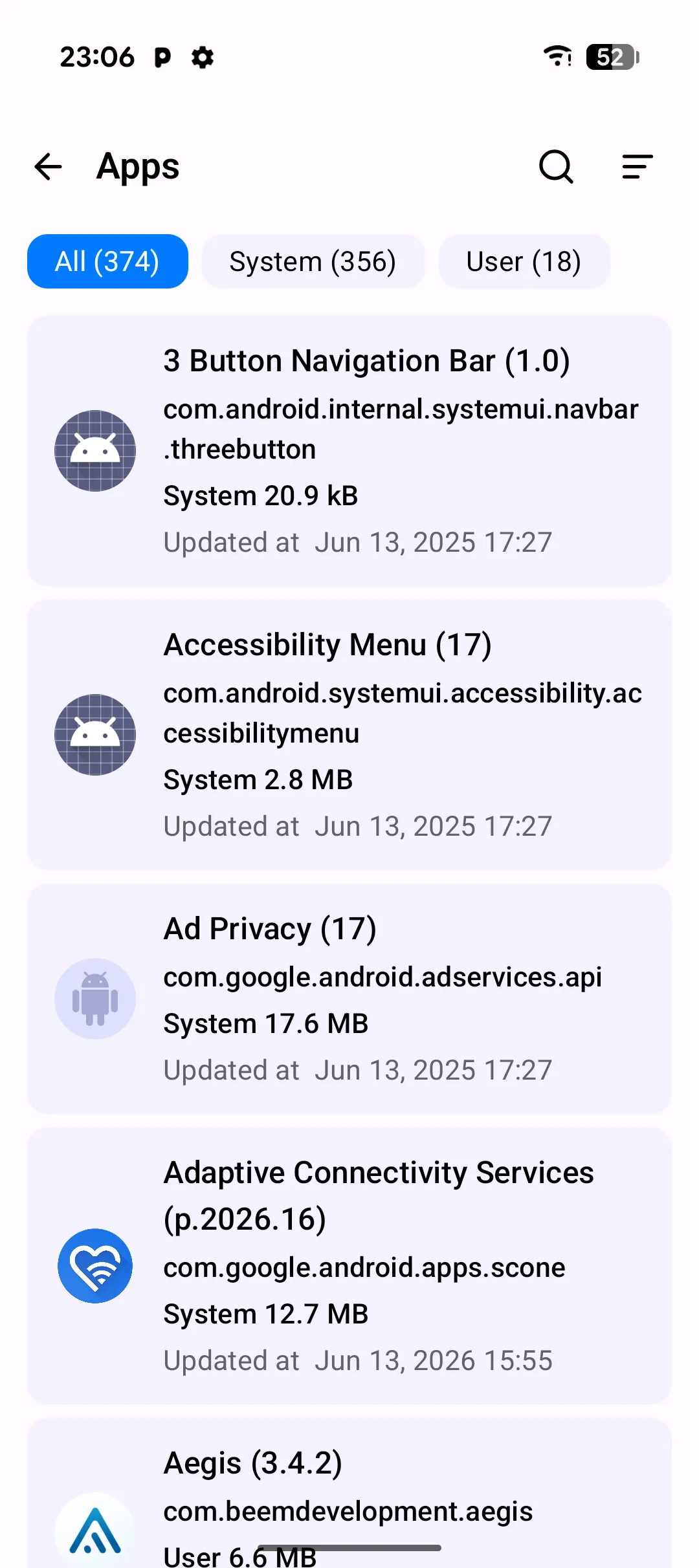
The Apps screen is PlainApp's on-device package manager. It lists every package installed on the phone — system and user — with its icon, version, package id, size, and last-updated timestamp, all rendered in the same Material 3 list style as the rest of the app.
The list is read straight from Android's PackageManager. Nothing is uploaded or indexed remotely; the screen works fully offline. Three tabs across the top scope the view to All, System, or User apps, and each tab shows a live count so you can see at a glance how many packages fall into each bucket.
Key capabilities
- Three scoped tabs with live counts — All, System, and User apps are separated into swipeable tabs, each labeled with the current package count. Switching tabs re-queries
PackageManagerand scrolls back to the top. - Search and sort — the search icon in the top app bar filters packages by name or id; the sort dialog reorders the list by name, size, or modified date. Sort preference is persisted across sessions.
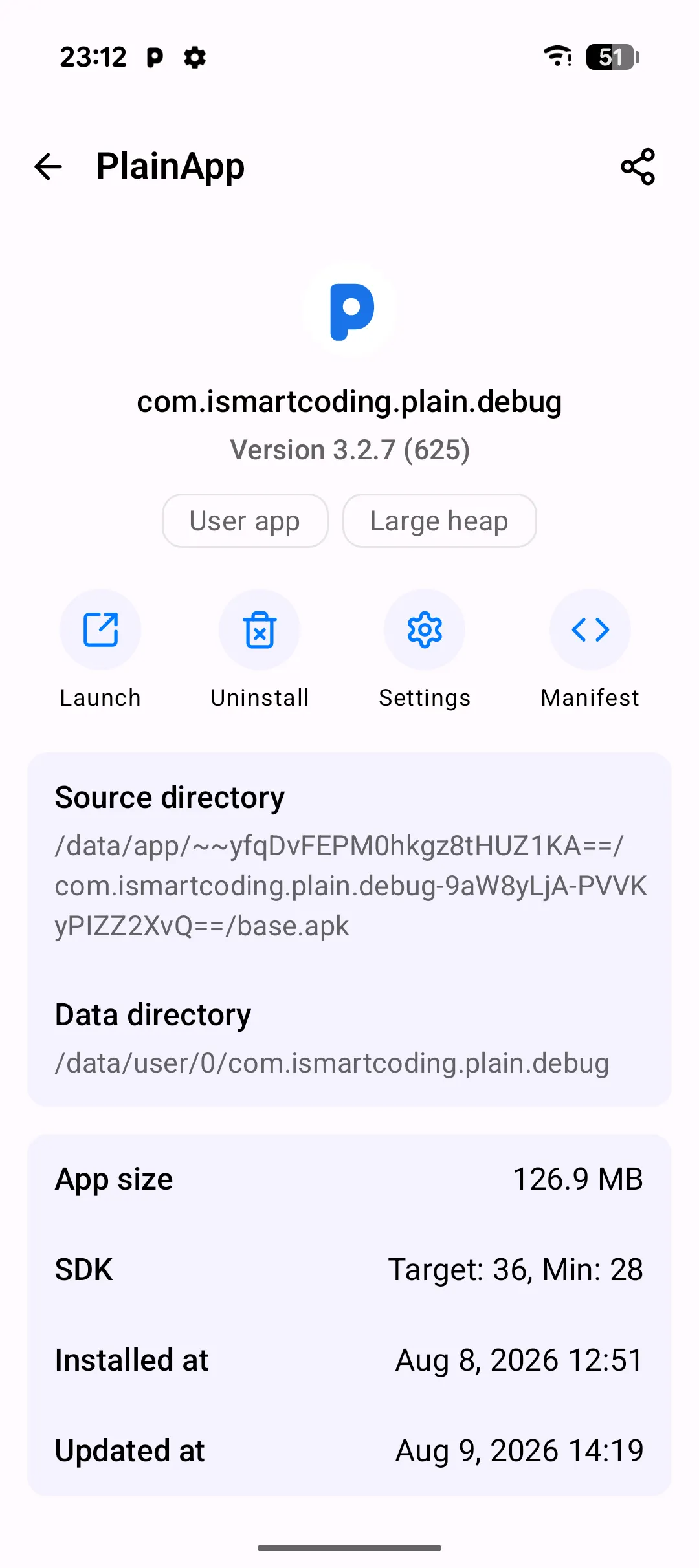
- Per-app detail page — tapping a row opens a detail screen with the app icon, selectable package id, version name plus version code, a User/System type chip, and a large-heap chip where applicable. Below that: source directory, data directory, app size, target and min SDK, and installed/updated timestamps.
- Launch, uninstall, and system settings — the detail page exposes Launch, Uninstall, and Settings shortcuts that map directly to the Android system intents, plus a Manifest button that decodes and displays the app's
AndroidManifest.xml. - APK export via share — the share button in the detail page's top app bar extracts the installed APK from its source path and hands it to Android's share sheet, renamed to
<AppName>-<packageId>.apk. - Pull-to-refresh and infinite scroll — pull the list down to re-query packages; the list loads in pages of 50 and appends more as you scroll, with a fast-scroll scrollbar for jumping through long lists.
Walkthrough
- Open the Apps tab from the bottom navigation. The three tabs at the top show the current count for All, System, and User apps.
- Tap the User tab to filter out system packages. The list refreshes and the count in the tab title updates.
- Tap the search icon in the top app bar and type part of an app name or package id. Results filter as you type; clear the query to return to the full list.
- Tap an app to open its detail page. The header shows the icon, package id, version, and type chip; the cards below show source/data directories, size, SDK targets, and install/update dates.
- Export the APK by tapping the share icon in the top app bar. Android's share sheet opens with the APK file already attached.
- Open the Manifest by tapping the Manifest action under the header. The decoded
AndroidManifest.xmlopens in a text viewer for inspection.
Tips & tricks
- Double-tap the top app bar to scroll the list back to the top — useful when you've paged deep into a long list.
- The sort dialog remembers your choice, so a name-based sort sticks across app restarts.
- The Manifest viewer is plain text with no syntax highlighting, but the content is selectable so you can copy permissions, activities, or service declarations into a note.
- If an app is uninstalled from outside PlainApp while its detail page is open, the page navigates back automatically on resume — no stale screens.
Privacy & security notes
- PlainApp only requests
QUERY_ALL_PACKAGESon Android 11+ to enumerate installed apps. On older Android versions the package list is read with the default visibility rules. - APK contents are never uploaded. Exporting an APK only hands the file to the local Android share sheet; what happens next depends on the target you pick.
- The Apps screen works fully offline. No network connection is required to list, search, or inspect packages.
Related features
- App Manager in the Web Dashboard — the same package list, accessed from a browser on your laptop.
- File Management on Android — the on-phone file browser for navigating storage volumes.
- Encrypted P2P Chat on Android — send files directly to another PlainApp device without a server.