
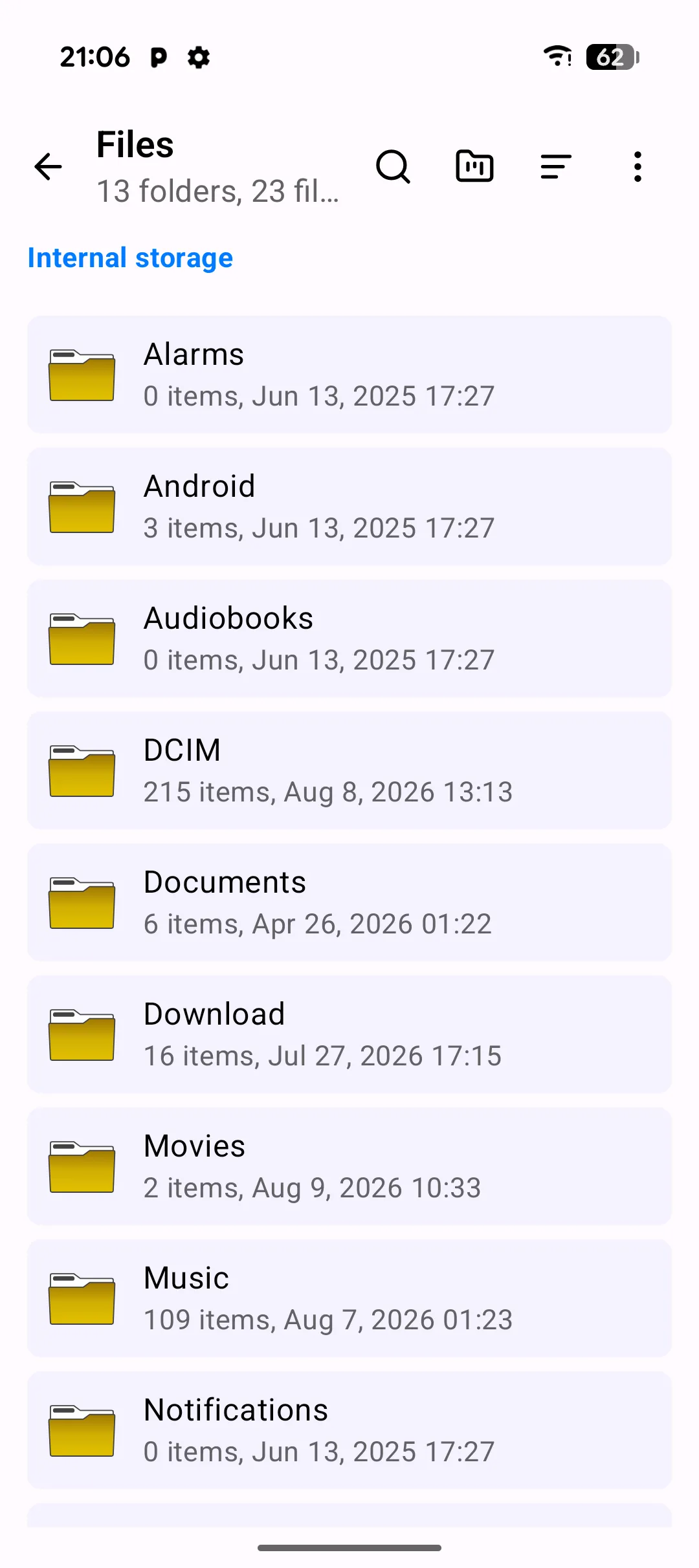
The Files screen is the home base of PlainApp's Android UI — a full file manager that lives on your phone, not in the cloud. Browse internal storage and PlainApp's own app data, jump straight to a favorite folder, preview a photo, or play a song without ever leaving the app.
Unlike a cloud file manager, every byte you see stays on the phone. PlainApp only reads the file system when you open a folder; nothing is indexed, uploaded, or cached on a remote server. That makes the Files screen fast even on a budget phone with a slow storage card — and it means your files are never anyone's business but yours.
Key capabilities
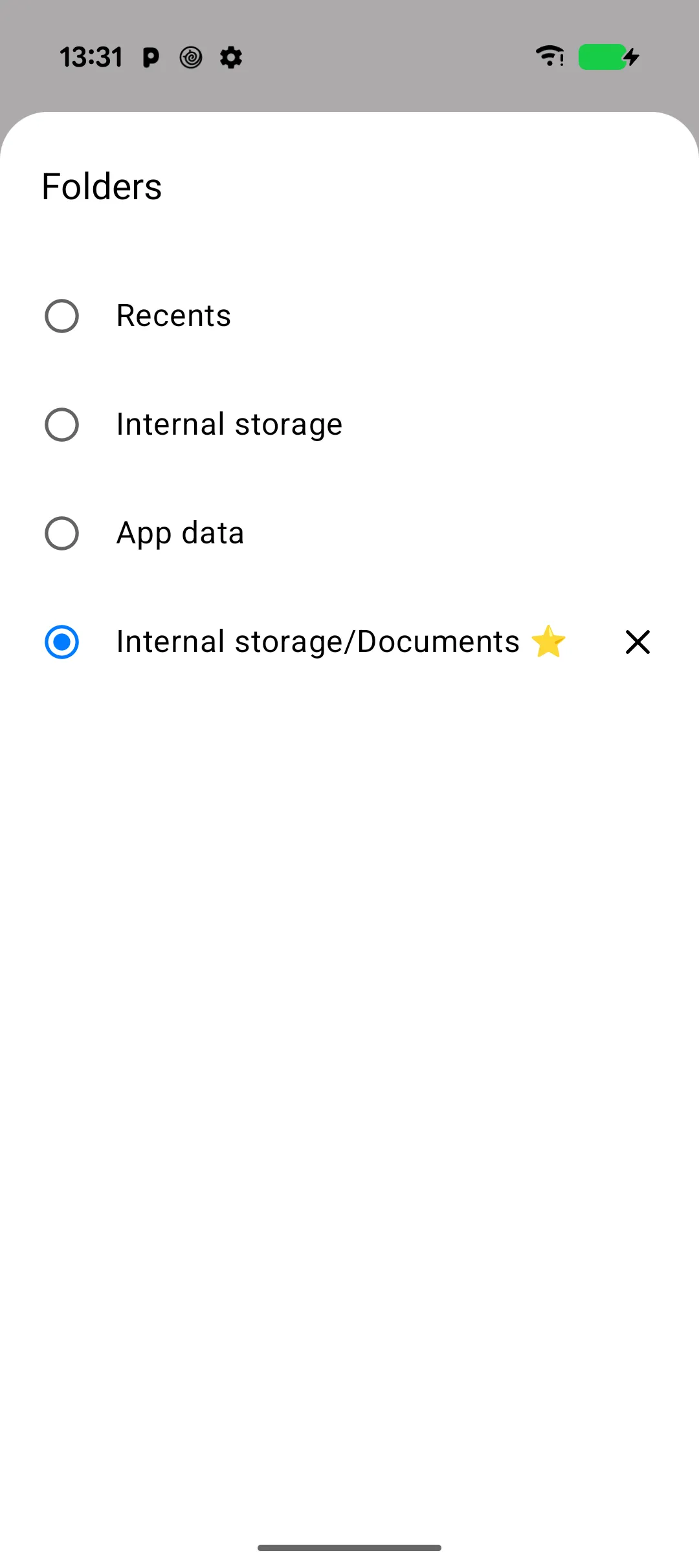
- Quick folder switching — tap the folder-kanban icon in the top bar to open the Folders sheet, which lists Recents, Internal storage, App data, and any folder you've starred as a favorite, with a radio button to jump straight there.
- Favorite folders — star a folder from its details sheet to pin it into the Folders switcher for one-tap access later; remove it again with the × button next to the entry.
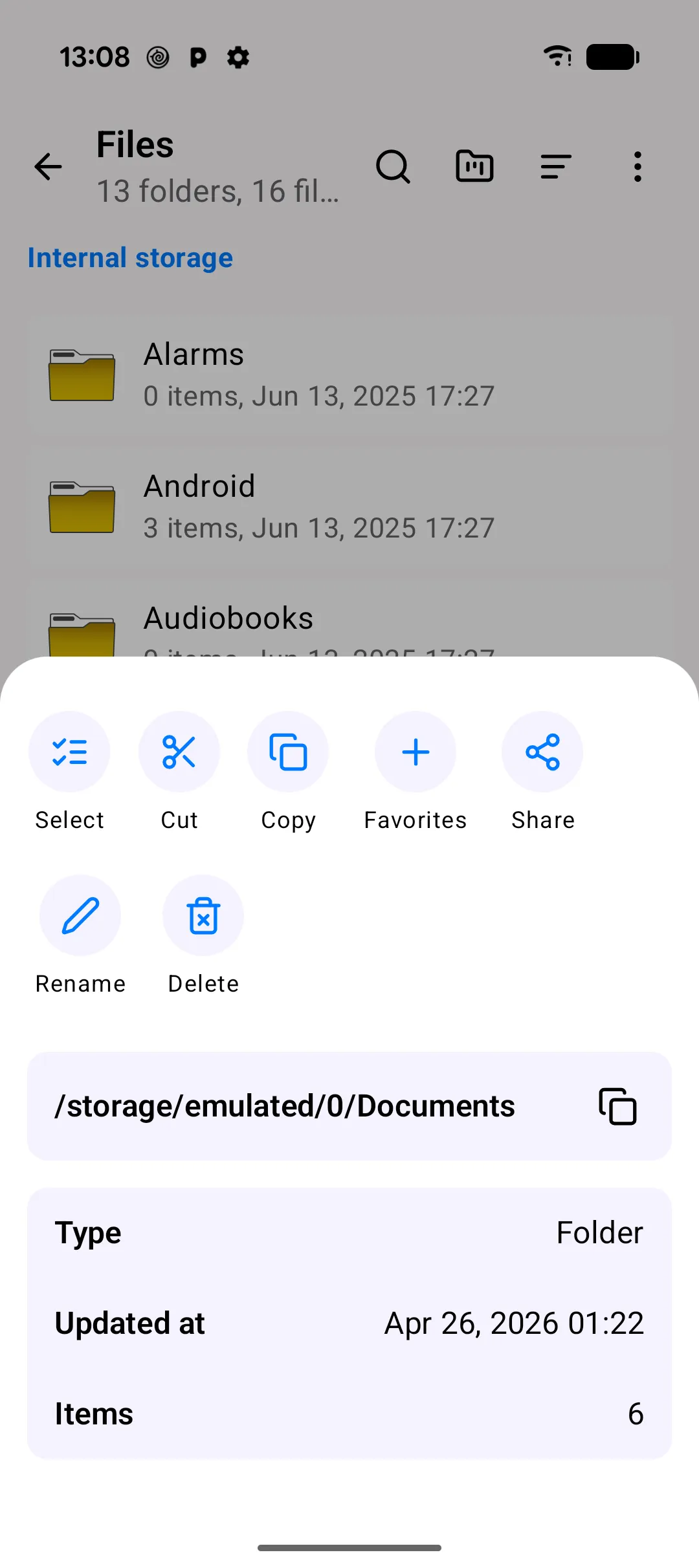
- Full file details on long-press — long-press any file or folder to open a bottom sheet with its full path (with a copy button), type, size, created/updated timestamps, and item count for folders, plus quick actions.
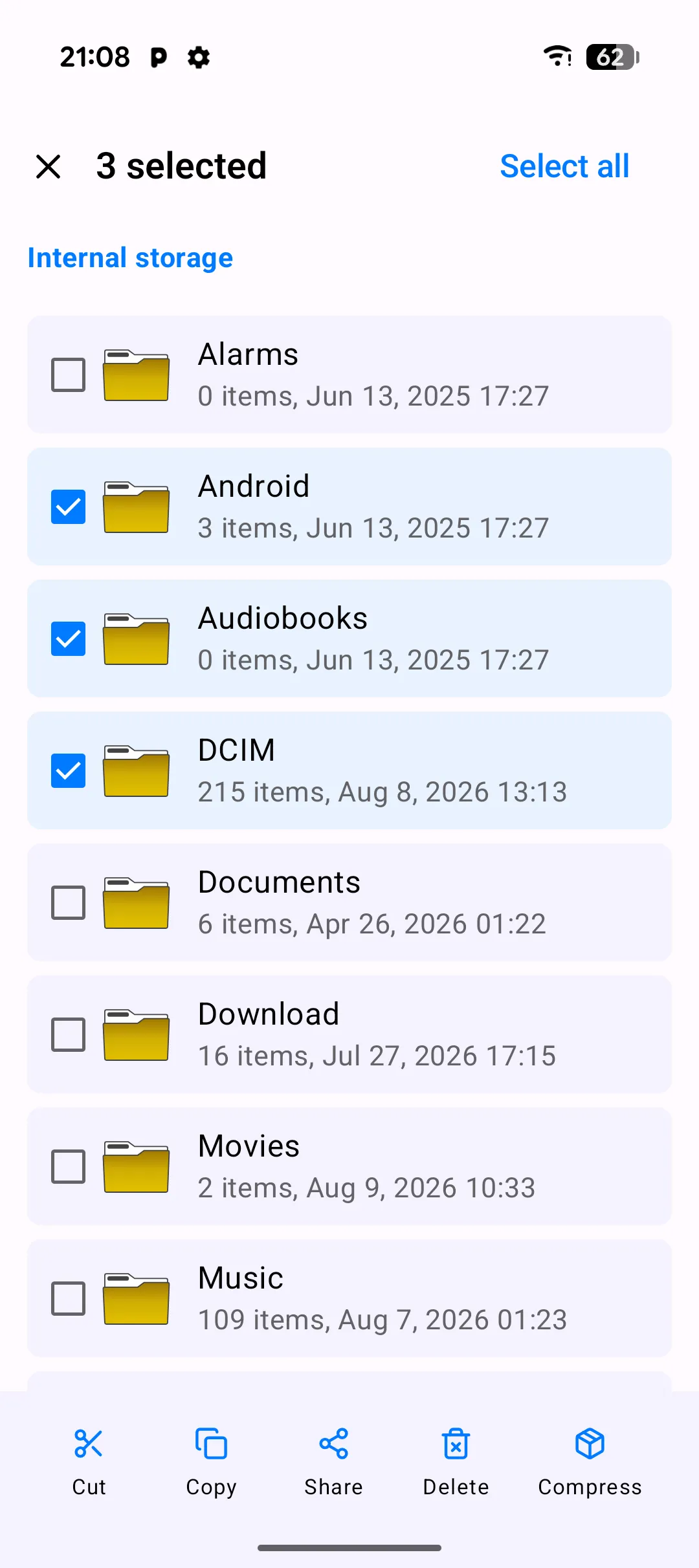
- Multi-select with a real action bar — enter selection mode to Cut, Copy, Share, Delete, or Zip several items at once; Rename and Unzip appear automatically when exactly one item — or one
.zipfile — is selected. - Cut/copy and paste — cutting or copying files shows a paste bar at the bottom of the screen; navigate to the destination folder and tap paste to complete the move or copy.
- Zip archives as virtual folders — tap a
.zipfile to browse its contents like a regular folder. Images and videos inside are extracted to cache on demand so you still get real thumbnails and the zoom-in previewer. - Built-in viewers for every common type — images and videos open with a zoom transform animation, audio files get an inline mini-player right in the list row (plus a full-screen player), text files open in a text viewer, and PDFs open in a built-in PDF viewer. Anything else falls back to the system's "Open with" chooser.
- Search, sort, and hidden files — search is scoped to the current folder, sort order (name, size, date) is remembered across sessions, and a "Show hidden files" toggle in the overflow menu reveals dotfiles when you need them.
- Create folders and files — the overflow menu lets you create a new empty folder or file directly in the current directory.
A closer look
Jump anywhere with the Folders switcher
No more tapping the breadcrumb back to the root every time you want to check a different location. The folder-kanban icon opens a Folders sheet listing Recents, Internal storage, App data, and every folder you've starred — pick one and PlainApp takes you straight there. Star a folder you visit often (like Downloads or a work project folder) from its details sheet, and it shows up here with a ⭐, ready to remove again with a single tap on ×.
Every detail, one long-press away
Long-press any file or folder and a bottom sheet slides up with everything you need: the full path (with a one-tap copy button), file type, size, created/updated timestamps, and item count for folders — plus quick actions for select, cut, copy, favorite, share, open with, zip, rename, and delete. No digging through a separate "properties" screen.
Multi-select that does real work
Select multiple files and folders and a bottom action bar appears with Cut, Copy, Share, Delete, and Zip — everything you'd expect from a desktop file manager, right on your phone. Select all items in the folder with one tap in the top bar. Pick exactly one item and extra actions unlock automatically: Rename, and if it's a .zip, Unzip too.
Cut, copy, and paste — like a desktop
Cut or copy a selection and a paste bar docks to the bottom of the screen. Navigate anywhere — even several folders deep — and tap paste to finish the move or copy. It works exactly like you'd expect from Windows Explorer or macOS Finder, just on Android.
ZIP files without leaving the app
Tap a .zip archive and PlainApp opens it as a browsable virtual folder instead of dumping the whole thing on your storage. Photos and videos inside get real thumbnails (extracted to cache on demand) and open in the same zoom-in previewer as regular files. Need the whole archive extracted? Select it and tap Unzip. Need to compress files before sharing? Select them and tap Zip.
Media that just plays
Tap a photo or video for a full-screen preview with a smooth zoom-in transition. Tap an audio file and playback starts immediately, with a compact progress bar and play/pause button appearing right under that row in the list — tap it to expand into a full-screen player with all the usual controls.
Find anything, sort your way
The search icon filters the current folder as you type. The sort button lets you reorder by name, size, or date, and PlainApp remembers your choice for next time.
Hidden files and quick create
The overflow menu (⋮) holds a Show hidden files switch for revealing dotfiles, plus Create folder and Create file shortcuts for starting something new right where you are.
Walkthrough
- Open the Files tab from the bottom navigation bar. You land in Internal storage, with the breadcrumb above the list showing where you are.
- Tap the folder-kanban icon to jump between Recents, Internal storage, App data, or a favorite folder without navigating breadcrumb by breadcrumb.
- Long-press a file or folder to open its details sheet, star it as a favorite, or trigger a quick action like share, zip, rename, or delete.
- Tap Select (or keep tapping items after a long-press) to enter multi-select mode. Use Select all in the top bar, then Cut, Copy, Share, Delete, Compress, or Rename from the bottom action bar.
- Cut or copy, then navigate to the destination folder and use the paste bar that appears at the bottom of the screen to finish the move or copy.
- Tap the search icon to filter the current folder by name, or use the sort and overflow-menu icons to change the sort order, reveal hidden files, or create a new folder or file.
Tips & tricks
- Selecting a single
.zipfile in multi-select mode reveals an Unzip button that extracts it next to the original file. - Selecting one or more files and tapping Zip compresses them into a new
.ziparchive in the same folder — handy before sharing a batch of files. - Tapping a
.zipfile (outside multi-select) opens it as a browsable virtual folder instead of extracting it — you can preview images/videos and open other files straight from inside the archive. - Tap an audio file to start playback; a mini progress bar with play/pause appears directly under that row in the list, and tapping it opens the full-screen player.
- The Rename action only appears when exactly one item is selected, to avoid accidentally renaming a whole batch at once.
- Star your most-used folders so they're always one tap away in the Folders switcher — no more re-navigating the same path every day.
Privacy & security notes
- File contents are never logged. Only file metadata (name, size, mime type) appears in optional crash reports, and only if you opt in.
- Deleting files is guarded by a path validator that refuses to touch system directories (like
/system,/data, or/proc) or paths that try to escape the selected folder, so a batch delete can't accidentally wipe something outside your storage. - The Files screen works fully offline. No network connection is required to browse, copy, rename, zip, or preview files.
Related features
- File Management on the Web Dashboard — the same file system, accessed from a browser on your laptop.
- Photos, Videos & Music on Android — the dedicated gallery view for media files.
- Encrypted P2P Chat on Android — send files directly to another PlainApp device without a server.