
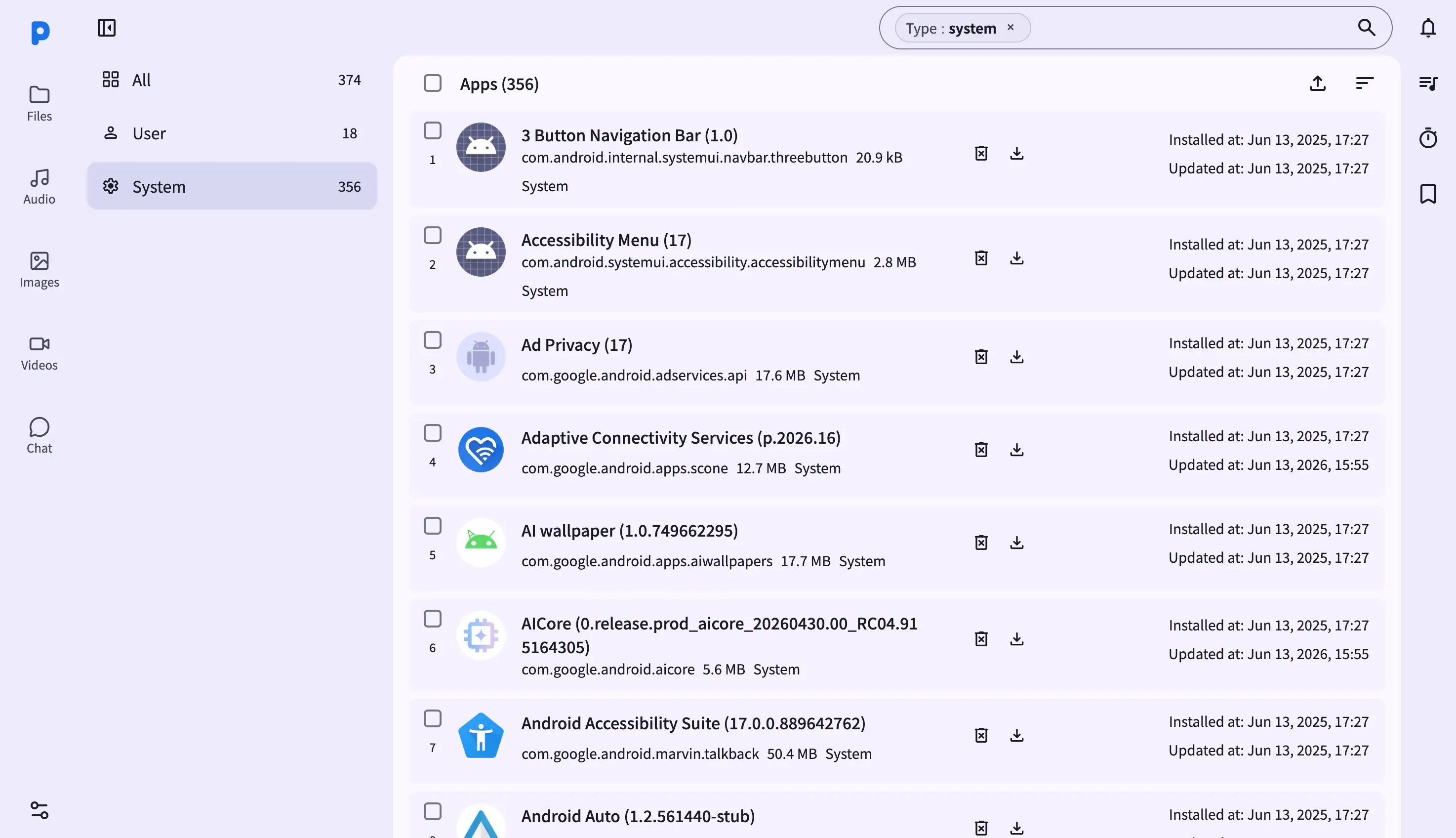
The Apps view in the web dashboard turns any laptop or desktop browser into a full package manager for your Android phone. Visit the URL shown in the PlainApp app (for example, https://192.168.1.50:8443/apps) from any browser on the same Wi-Fi network, and you'll see every installed package laid out in a sortable table with icons, versions, sizes, and install dates.
Because the dashboard runs as a static web app served directly from the phone, there's no cloud relay in the middle. Your browser talks to the phone over an encrypted TLS connection, and every action — search, sort, APK export, uninstall — is dispatched to the phone's PackageManager over that channel.
Key capabilities
- Sortable app table — each row shows index, icon, name with version, package id, size, and type alongside installed and updated timestamps. Click a sort option in the top app bar to reorder by name, size, or modified date.
- Sidebar filters with live counts — the left sidebar lists All, User, and System apps, each with a live count fetched from the phone. Click a filter to scope the table; the active filter is reflected in the URL.
- Bulk APK export — select one or more rows with the checkbox column and click the download button in the top app bar. A single selection downloads the APK directly; multiple selections are zipped together on the fly.
- Per-row uninstall and download — hover a row to reveal its action buttons: download the APK, or trigger an uninstall. Uninstall prompts you to confirm on the phone, and a spinner on the row tracks the uninstall state until the package is gone.
- Drag-and-drop APK install — drag
.apkfiles from your computer anywhere onto the Apps page. A drop mask appears; release to upload the files to the phone's downloads directory and trigger an install, with progress tracked in the uploads panel. - Search and pagination — the search box filters packages by name or id; the table paginates with a configurable page size and a select-all checkbox that handles the full result set even when it spans pages.
Walkthrough
- Open the Apps page from the left sidebar. The first time you visit, the table loads All apps with the total count shown in the top app bar.
- Filter by User apps — click User in the left sidebar. The table refreshes and the URL updates to
/apps?q=<token>so the filter is shareable. - Search for an app using the search box. The query is encoded into the URL, so you can bookmark or share a filtered view.
- Click a row's download icon to export that app's APK. The file downloads as
<AppName>-<packageId>.apkto your browser's default download directory. - Select multiple rows with the checkboxes (or select-all) and click the download button in the top app bar to bulk-export the APKs as a single zip.
- Uninstall an app by clicking its uninstall icon. The row enters an uninstalling state; confirm the prompt on the phone, and the row disappears once the package is removed.
Tips & tricks
- Drag APKs to install: drop one or more
.apkfiles anywhere on the Apps page to upload and install them. Non-APK files in the drop are ignored. - Sort via the top app bar: the sort icon opens a dropdown of sort options. The current sort is highlighted; picking a new one reloads the table from page 1.
- Select-all across pages: the select-all checkbox offers a "select all N results" option when the result set spans multiple pages, with a clear-selection control to back out.
- Bookmark a filtered view: the URL carries the active query and page number, so you can share a deep link like
/apps?q=<token>&page=2with anyone on the same network.
Privacy & security notes
- The web dashboard is served over HTTPS with a self-signed certificate, with all traffic further encrypted with XChaCha20-Poly1305 layered on top of TLS.
- The web dashboard binds to your local network only — it is not reachable from the internet unless you explicitly set up port forwarding.
- Your browser will warn you the first time — accept the certificate to continue. The connection is encrypted with TLS; the warning is only about identity, not security.
Related features
- App Manager on Android — the on-phone app manager UI for when you're not at a computer.
- File Management in the Web Dashboard — the desktop file manager for the phone's storage volumes.
- Markdown Notes in the Web Dashboard — write notes in the browser with a live markdown preview.