
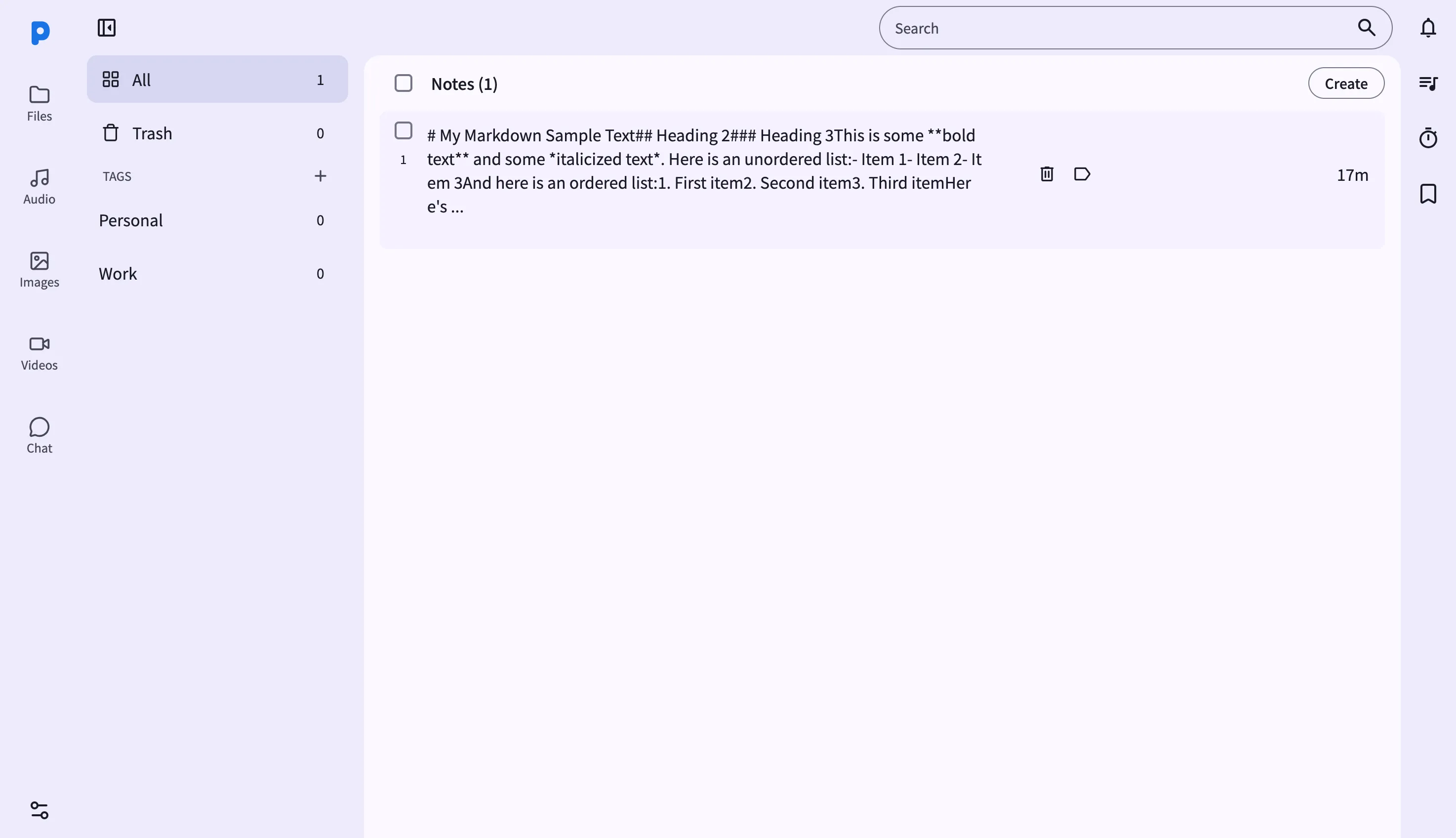
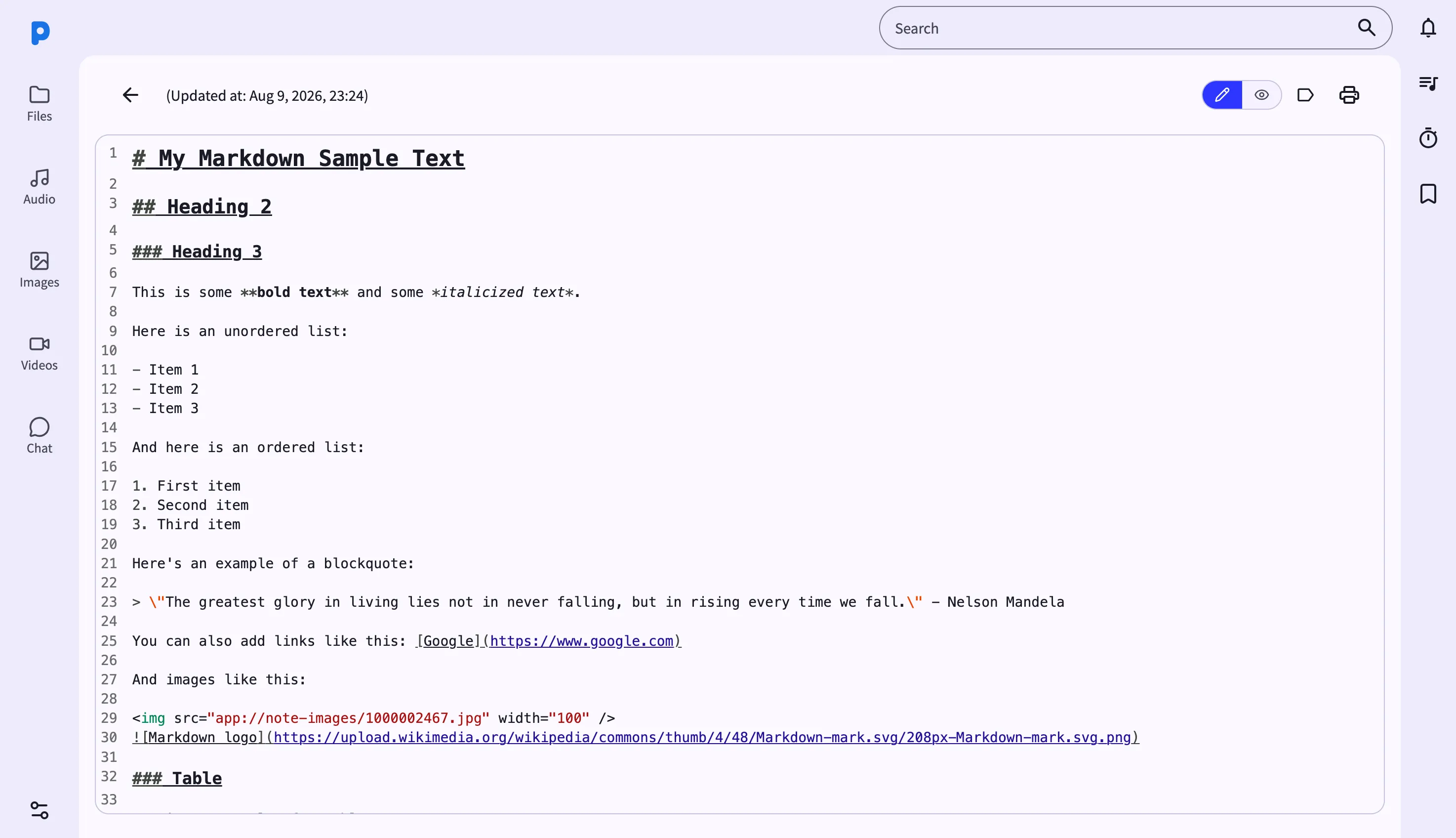
The Notes view in the web dashboard gives you a desktop-grade editor for the note archive that lives on your Android phone. Visit the URL shown in the PlainApp app from any browser on the same Wi-Fi network and you'll see your notes laid out in a two-pane layout — list on the left, editor on the right.
Because the dashboard talks to the phone directly, the notes you edit never round-trip through a cloud server. Your browser connects to the phone over an encrypted TLS connection, layered with XChaCha20-Poly1305, so keystrokes stay on your local network.
Key capabilities
- Two-pane list + editor — the left pane shows a virtualized list of every note with title, snippet, tags, and modified time. Click any item to open it in the right-hand editor.
- Editor / preview toggle — a single button switches the editor between raw markdown and a rendered preview. It's a toggle, not a split view — you're always looking at one or the other.
- Paste or drag images straight into a note — paste a screenshot or drag an image file into the editor and it's uploaded to the phone and embedded as a markdown image link automatically.
- Tag filter — click a tag chip above the list to filter notes by tag.
- Bulk actions — check multiple notes for bulk trash, tag, or export.
- Export to .md — export selected notes as a zip archive of individual
.mdfiles, ready to back up to a folder on your computer.
Walkthrough
- Open the Notes page from the sidebar. The list loads the most recently modified notes, with the total count in the header.
- Click a note in the list to open it in the editor. The title and body populate the right pane.
- Edit the content — type markdown directly. Changes auto-save automatically about half a second after you stop typing; there's no save button.
- Toggle the preview with the preview button in the editor toolbar to check your formatting, then toggle back to keep editing.
- Paste an image you've copied (or drag one from your file manager) directly into the editor — it uploads and appears inline as a markdown image.
- Filter by tag by clicking a tag chip above the list; click it again to clear the filter.
Tips & tricks
- Use Export on a selection of notes to download a zip of
.mdfiles — handy for a periodic backup to your computer. - Search the archive with the search box above the list; it matches both titles and bodies as you type.
- Selecting a note updates the URL to
/notes/<id>, so you can bookmark a specific note and jump straight back to it. - The markdown editor auto-completes common structures like headings, lists, tables, and footnotes as you type, and renders math with KaTeX in the preview.
Privacy & security notes
- The web dashboard is served over HTTPS with a self-signed certificate, with all traffic further encrypted with XChaCha20-Poly1305 layered on top of TLS.
- The web dashboard binds to your local network only — it is not reachable from the internet unless you explicitly set up port forwarding.
- Your browser will warn you the first time — accept the certificate to continue; the warning is about identity, not security.
- Notes are stored as plain text in the phone's local database; encryption applies to the connection, not to the note content at rest.
Related features
- Markdown Notes on Android — the on-phone editor for when you're away from a computer.
- File Management in the Web Dashboard — manage the raw
.mdfiles you export from notes. - RSS Reader in the Web Dashboard — clip articles into your note archive from the RSS reader.