
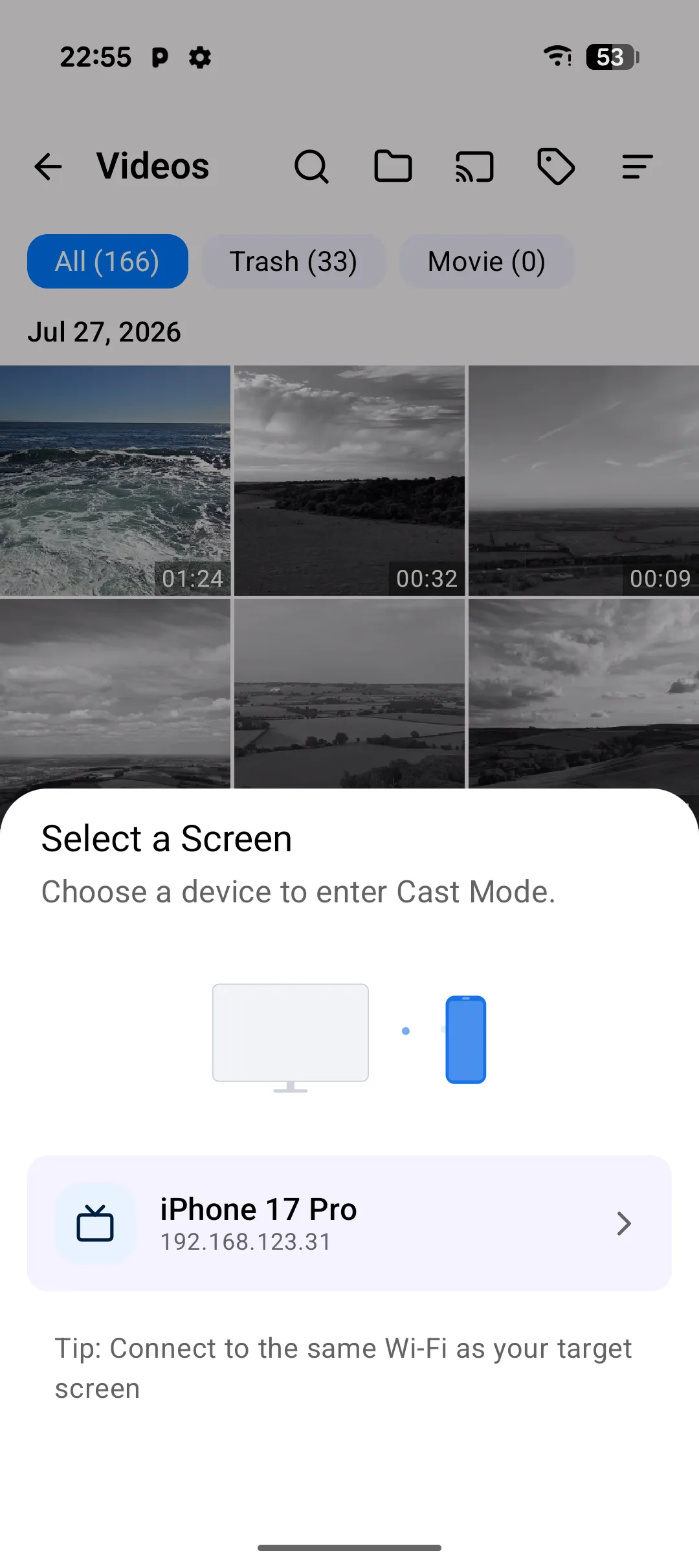
PlainApp can cast your photos, videos, and music straight to any DLNA/UPnP renderer on the same network — a smart TV, a streaming stick, or a network speaker. There's no dedicated "Cast" tab; instead, a cast button lives right inside the Images, Videos, and Audio screens, so you never have to leave the gallery you're already browsing to send something to the big screen.
Casting goes directly from phone to renderer over the local network. There's no cloud relay and no transcoding server in the middle — if your TV can decode the file, it plays. A Now Playing bar gives you play, pause, seek, and a disconnect button for as long as the session runs.
Key capabilities
- Cast from Images, Videos, or Audio — open the cast dialog from any of the three media screens to discover nearby DLNA renderers and start playback on them.
- Photos, videos, and music all cast — PlainApp maps the file extension to the right DLNA media class (music track, image, or video) before handing the URL to the renderer.
- Now Playing controls — play, pause, and seek the currently casting file directly from the phone.
- Background audio casting — cast a song and switch to another screen; the audio cast player bar keeps running.
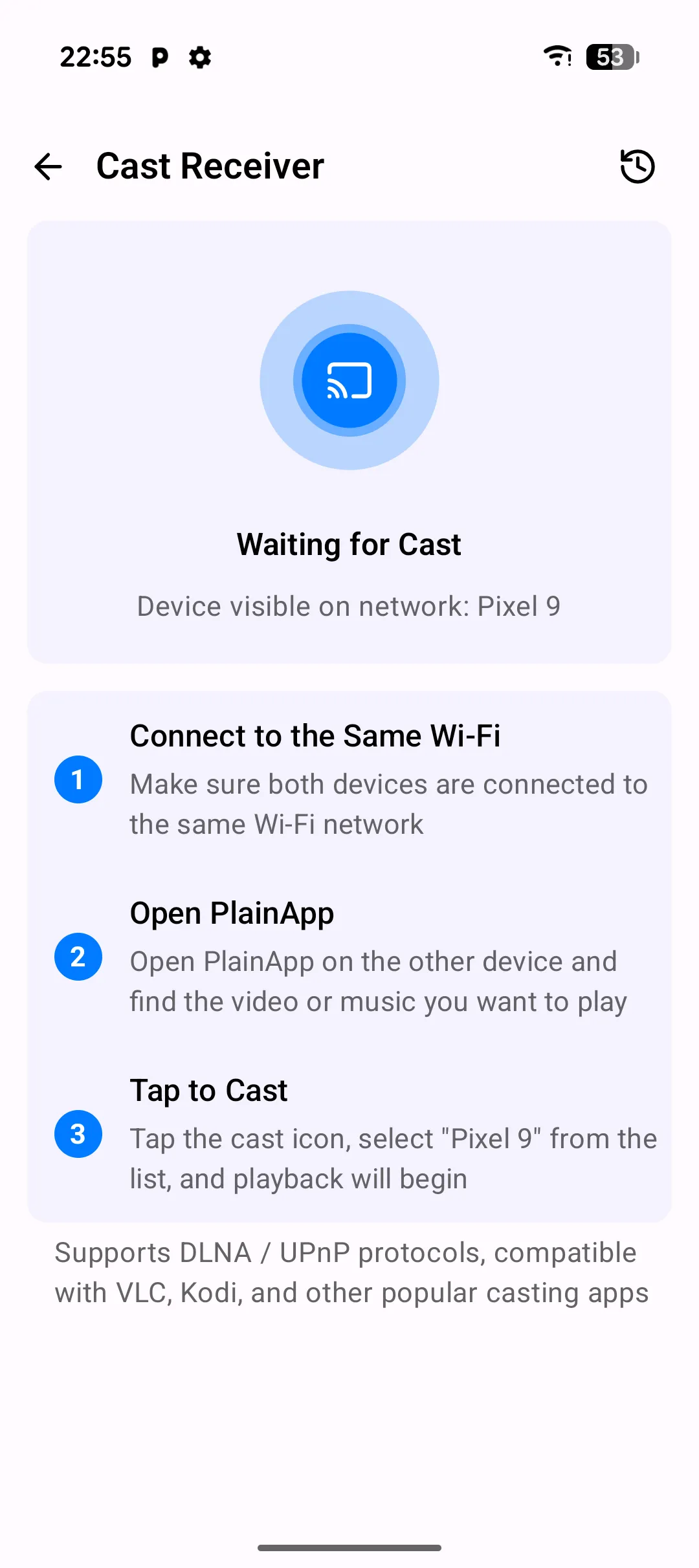
- DLNA Receiver mode — flip the direction: enable DLNA Receiver from the Home screen and PlainApp itself becomes a discoverable renderer, so another DLNA sender (like a laptop) can cast photos, video, or audio to your phone.
Walkthrough
- Open Images, Videos, or Audio from the Home screen and pick something you want on the big screen.
- Tap the cast icon to open the device dialog. PlainApp scans the network over SSDP and lists every reachable DLNA renderer.
- Pick a device — playback starts on the renderer immediately, and a Now Playing bar appears with play/pause/seek controls.
- Cast something else — open the cast dialog again and pick a new file; the previous one stops and the new one starts.
- Disconnect when you're done to release the renderer.
- To receive a cast instead, turn on Cast Receiver from the Home screen — any DLNA sender on the network can now cast to your phone.
Tips & tricks
- For music, start a cast and switch to another app entirely — the cast keeps running and the audio cast bar stays reachable.
- If a video stutters on the TV, the renderer likely can't decode that codec — try a different file or transcode it on a computer first.
- DLNA Receiver mode is useful for turning an old phone into a cheap "smart display" for casting from other devices on the network.
Privacy & security notes
- Casting happens directly from phone to renderer over the local network. No media is uploaded to a cloud relay.
- PlainApp does not transcode or re-encode your media — the file is handed to the renderer as-is.
- Discovery and casting work entirely on the local network. No internet connection is required.
Related features
- Photos, Videos & Music on Android — the Images, Videos, and Audio screens the cast button lives inside of.
- File Management on Android — browse the file system to find media that isn't in the gallery.
- Encrypted P2P Chat on Android — another screen that talks directly to other devices on the local network.