
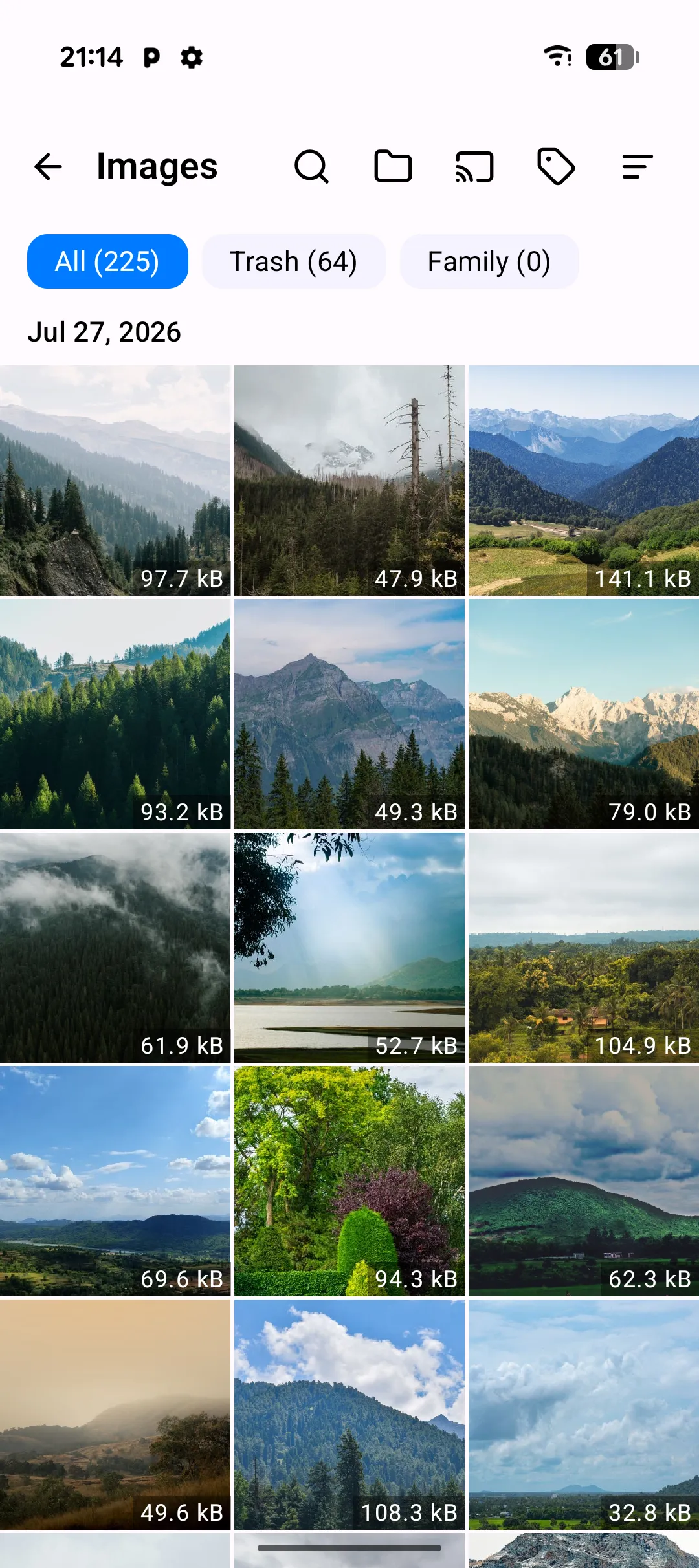
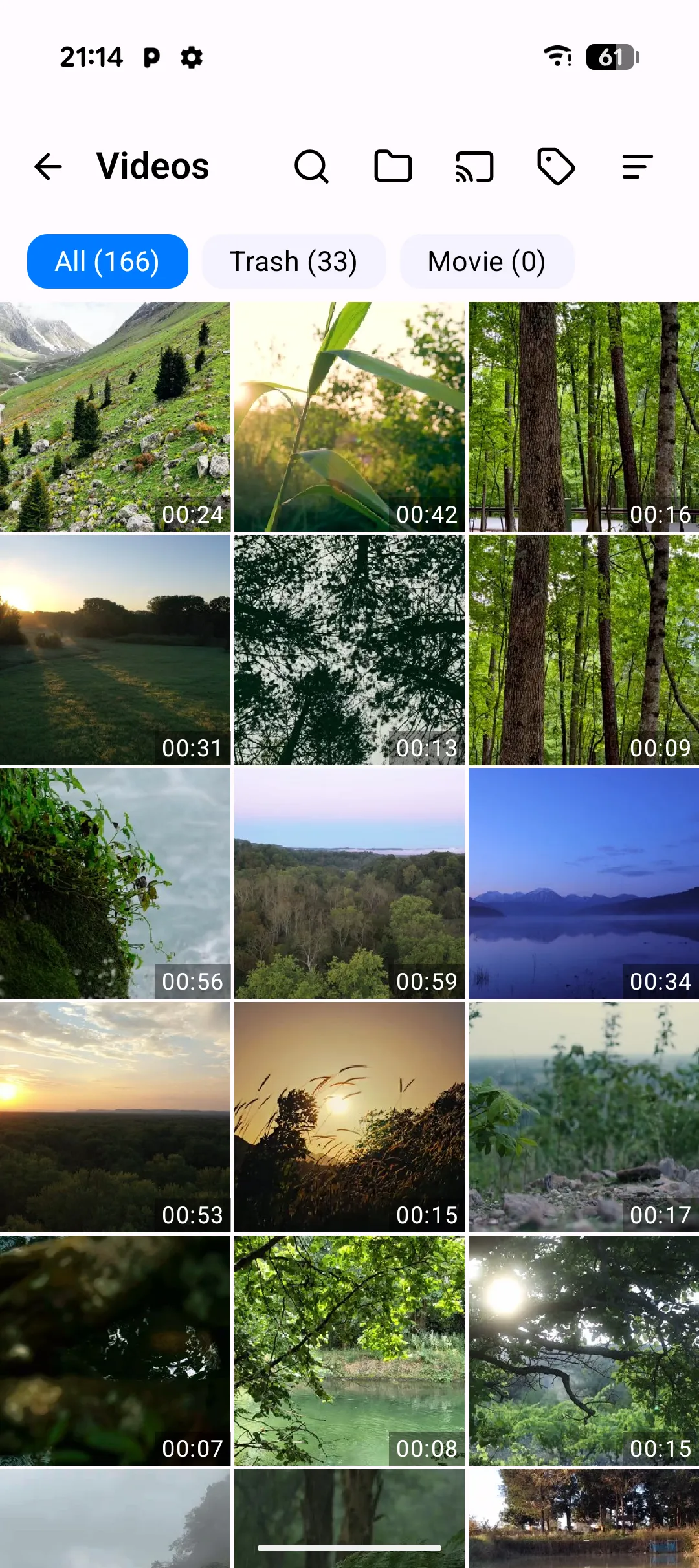
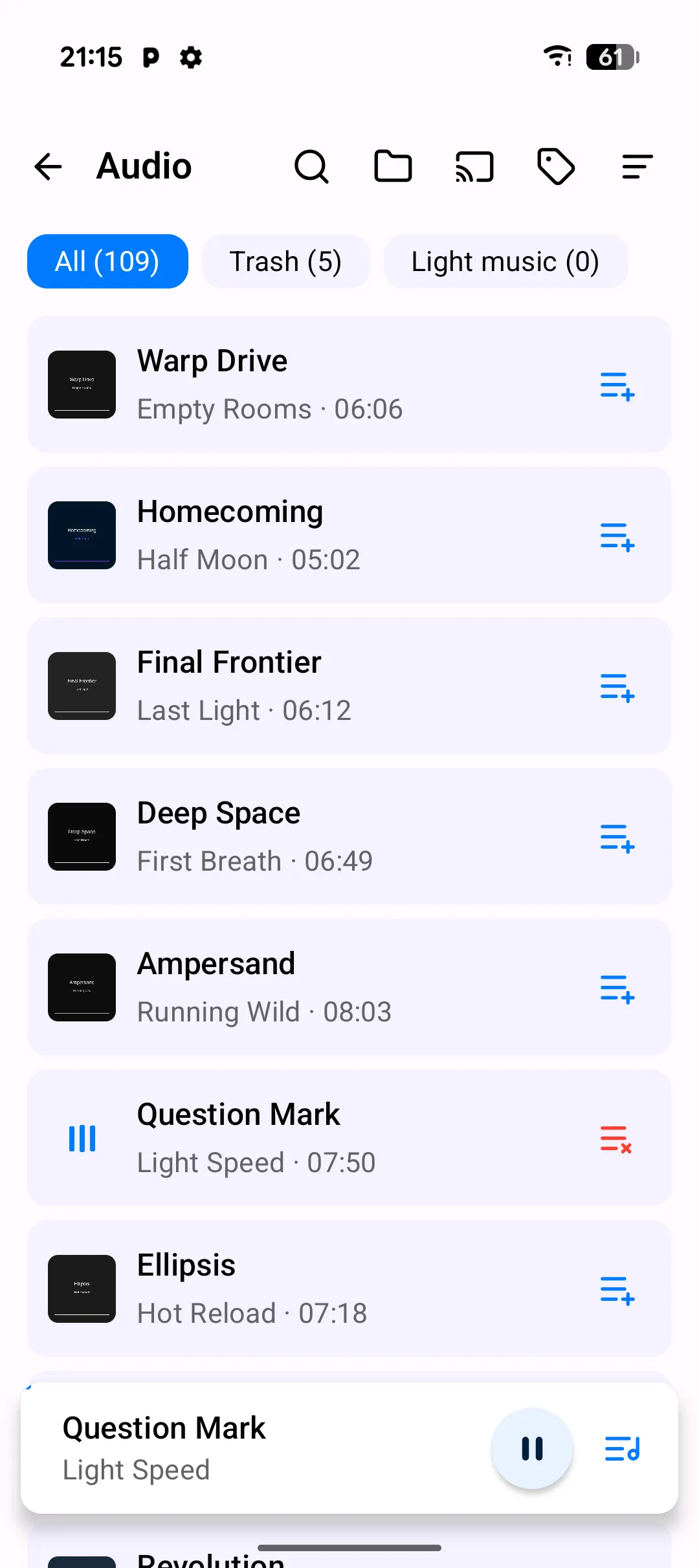
PlainApp gives your photos, videos, and music three dedicated screens from the Home grid — Images, Videos, and Audio — rather than cramming everything into one gallery with tabs. Each screen is tuned for what it holds: photos and videos get a date-grouped thumbnail grid, while music gets a list built around playback (playlists, a sleep timer, background audio).
Unlike a cloud gallery, PlainApp reads directly from Android's MediaStore. Nothing is uploaded, indexed remotely, or re-encoded — the grids open instantly even with tens of thousands of items, and everything still works with no network connection at all.
Key capabilities
- Images & Videos: date-grouped grid with adjustable density — items cluster under sticky headers by the date they were taken (falling back to created date), and a pinch gesture changes how many thumbnails fit per row.
- Sort and tag filters — sort by date, size, or name (ascending or descending) or group by date taken; filter tabs for All, per-tag, and Trash sit above every grid.
- Drag-select multi-select — drag across the grid to select a range of photos or videos, then rename, share, tag, trash, or cast the whole selection at once.
- Built-in viewers and players — photos open in a swipeable fullscreen viewer, videos play in an ExoPlayer-backed player, and music plays through a background-friendly mini-player plus a full player page.
- Audio: playlists and a sleep timer — build reorderable playlists from any selection of tracks, and set a sleep timer that pauses playback after a set duration with a live countdown — both are Android-only strengths, not available on the web dashboard.
- Cast to DLNA devices — every screen has a cast button that discovers DLNA/UPnP renderers on your network and streams the selected photo, video, or track to them.
- Trash and restore — where enabled, deleted items move to a trash tab before permanent removal, with one-tap restore.
Walkthrough
- Open Images, Videos, or Audio from the Home screen — each opens directly into its own grid or list, no extra navigation.
- Browse a photo or video grid grouped by date, and pinch to change how many thumbnails fit per row.
- Tap an item to open the fullscreen viewer or video player; swipe between items in the same group.
- Long-press to multi-select, then drag to extend the selection across a range of items.
- Cast to a TV or speaker by tapping the cast icon and picking a discovered DLNA device.
- On the Audio screen, add tracks to a playlist, or open Sleep Timer to have playback pause after a set duration.
Tips & tricks
- Use the tag filter tabs to narrow a grid down before doing a bulk action — tag first, then filter, then select.
- The sort you pick (by date, size, or name) is remembered separately for each of the three screens.
- The sleep timer keeps counting down even if you lock the phone — check the notification for the remaining time.
- Screenshots show up in the Images screen alongside camera shots; tag them separately if you want to filter them out.
Privacy & security notes
- PlainApp reads media through the system MediaStore API. On Android 13+ it requests
READ_MEDIA_IMAGES,READ_MEDIA_VIDEO, andREAD_MEDIA_AUDIOseparately, so you can grant access to one type without the others. - Media contents are never uploaded. Every screen is a local view of files already on the device.
- Casting is established directly between your phone and the receiving DLNA device on your local network — no relay server is involved.
Related features
- Photos, Videos & Music in the Web Dashboard — the same three screens, accessed from a browser on your laptop.
- TV Cast (DLNA) on Android — a closer look at the cast button shared by all three screens.
- File Management on Android — the general-purpose file browser for non-media files.