
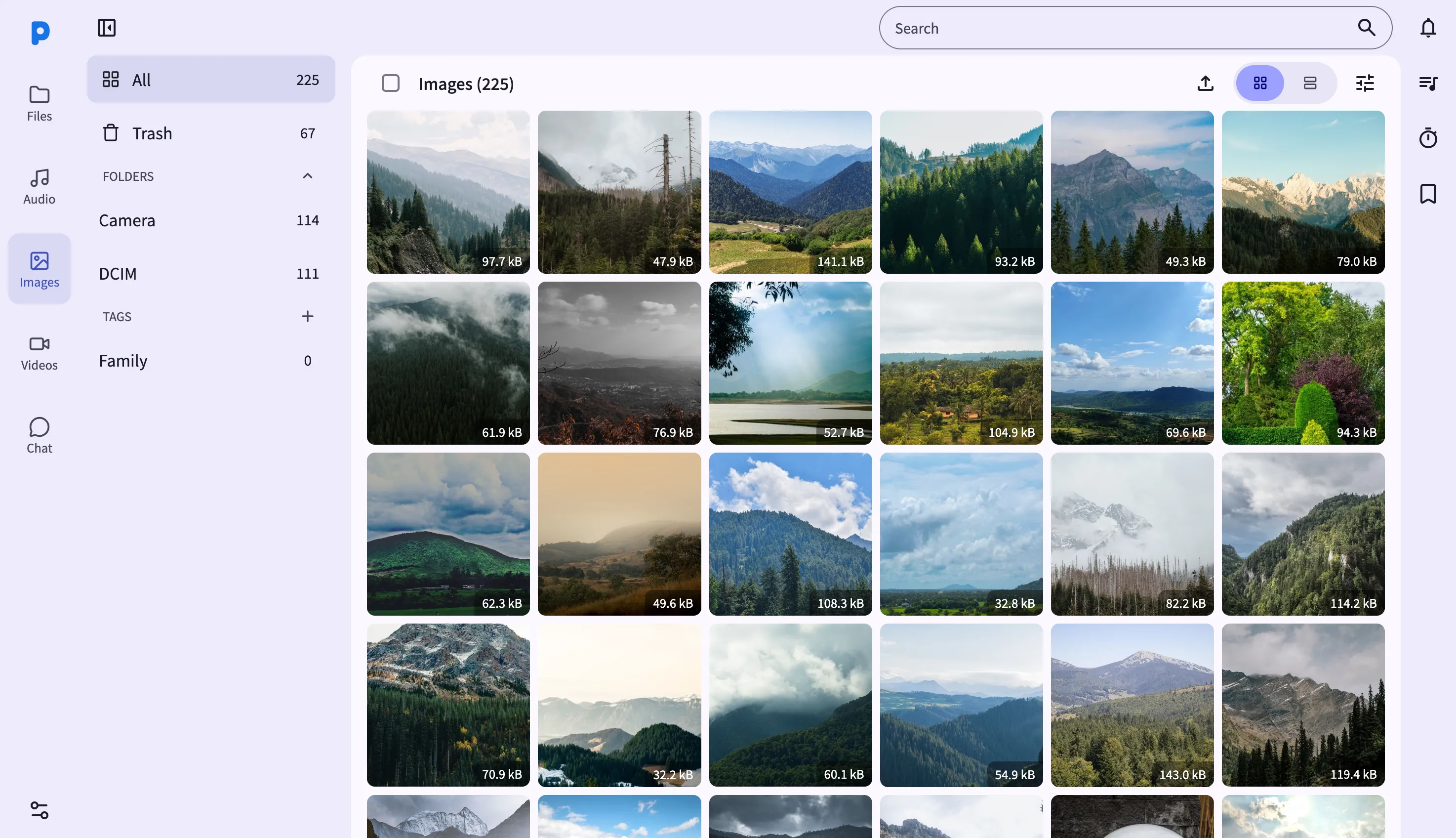
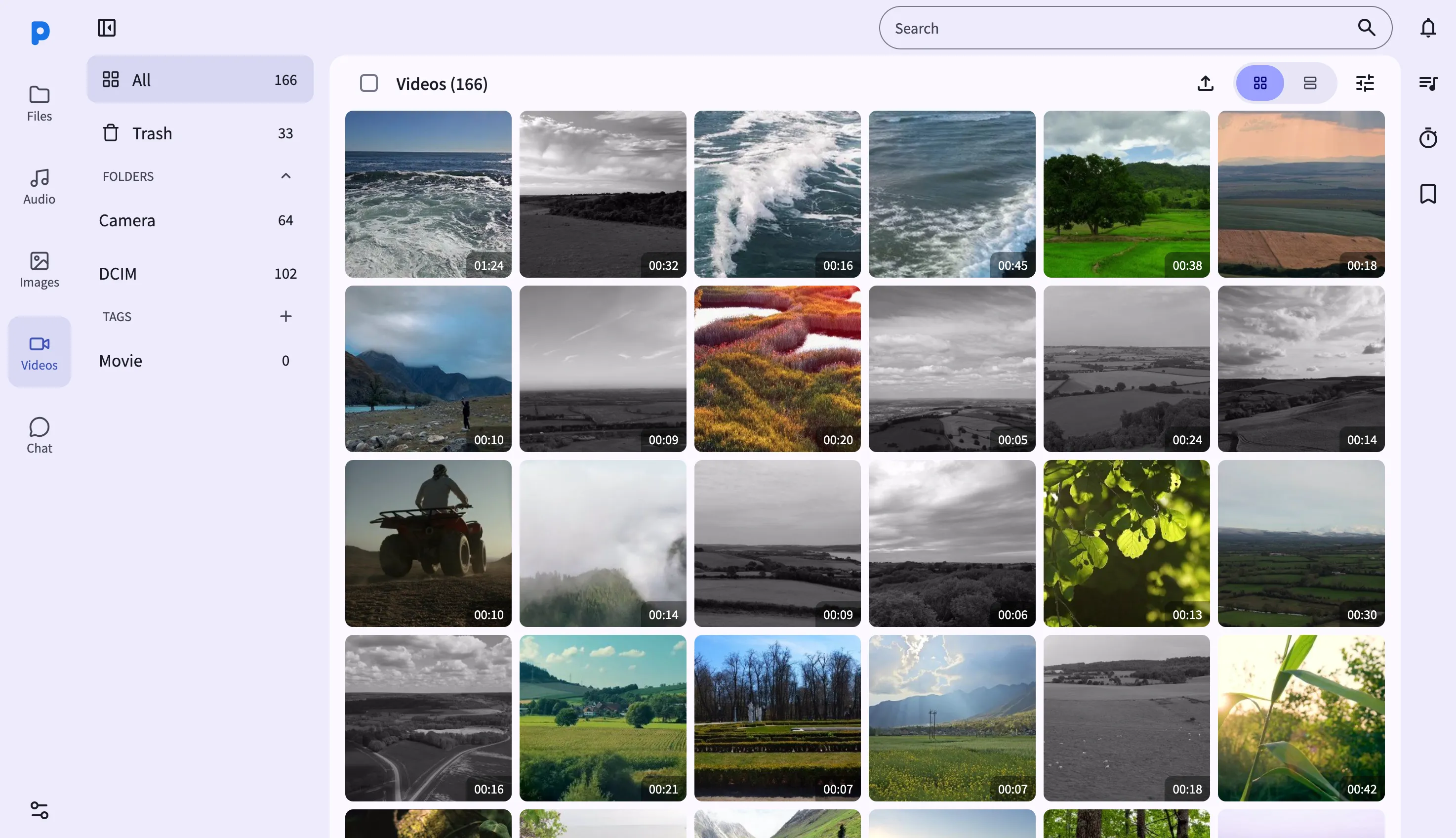
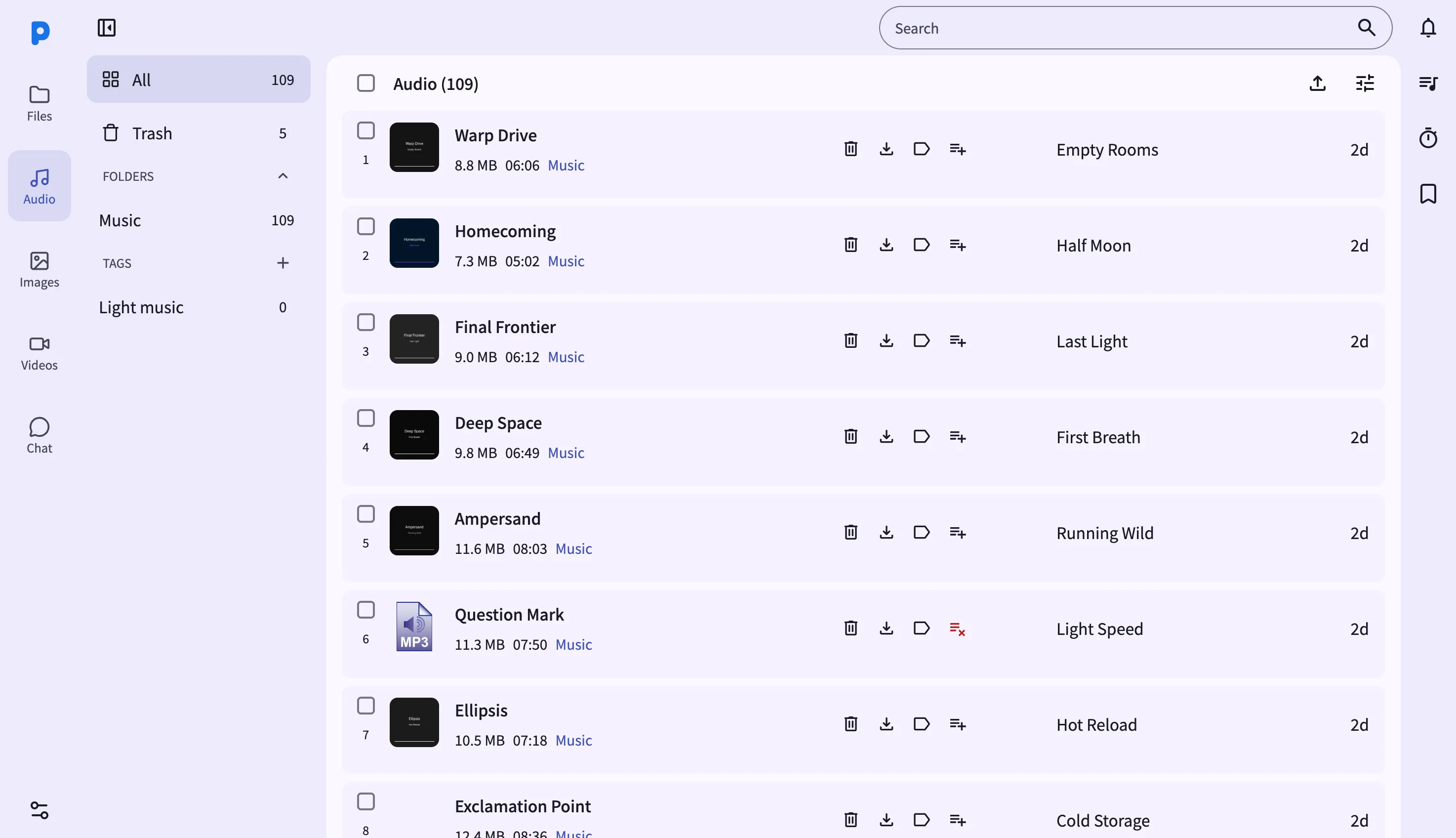
The web dashboard mirrors PlainApp's media library across three views — Images, Videos, and Audio — each reachable from the sidebar. Open the URL shown in the app and you get a date-grouped grid for photos and videos, and a streamlined list for music, all fed live from the phone.
Because the dashboard talks to the phone directly, there's no cloud gallery in the middle. The browser requests thumbnails from the device itself, so scrolling through thousands of photos stays responsive even on a slow laptop.
Key capabilities
- Grid or list view for Images and Videos — toggle between a thumbnail grid (with pinch-to-zoom cell sizing) and a dense list showing file names, sizes, and tags.
- AI image search — describe a photo in natural language and PlainApp ranks matches using on-device image embeddings. Disabled on the F-Droid build.
- Batch tagging and multi-select — drag to select a range, or Shift-click across the grid, then apply a tag to every selected item at once.
- Fullscreen lightbox — click any photo or video to open a lightbox with arrow-key navigation and Escape to close.
- Download, trash, and restore — download the current selection, or move it to trash with a restore option before it's gone for good.
- Drag-and-drop upload — drop files from your computer straight into the browser window to upload them to the phone's library.
- Audios: playlists, not a grid — the Audios view is a list, with add-to-playlist and remove-from-playlist actions and play/pause controls that trigger playback on the phone.
Walkthrough
- Open Images, Videos, or Audios from the sidebar. Images and Videos load a date-grouped grid; Audios loads a list.
- Toggle grid/list view from the options menu on the Images or Videos page.
- Select multiple items by Shift-clicking a range or dragging across the grid, then use the toolbar to tag, download, or trash them.
- Open the lightbox — click any photo or video thumbnail to view it fullscreen, and use the arrow keys to move between items.
- Try AI image search — click the image-search button, describe what you're looking for, and press Enter. Matching photos appear ranked by similarity.
- On Audios, click the playlist icon on a track to add or remove it from a playlist, and use the play button to start playback on the phone.
Tips & tricks
- Group Images or Videos by date taken from the options menu — this is currently the only grouping option; there's no separate "date added" grouping.
- Toggle scroll paging in the options menu to load more items automatically as you scroll, instead of using page navigation.
- Drag image or video files from your computer into the browser window to upload them — a drop mask appears while dragging.
- The web dashboard doesn't have a sleep timer or full playlist-management page — for those, use the Audio screen on the phone itself.
Privacy & security notes
- The web dashboard is served over HTTPS with a self-signed certificate, with all traffic further encrypted with XChaCha20-Poly1305 layered on top of TLS.
- The web dashboard binds to your local network only — it is not reachable from the internet unless you explicitly set up port forwarding.
- AI image search runs entirely on the phone using on-device embeddings. No image content or query text leaves the device.
Related features
- Photos, Videos & Music on Android — the on-phone screens, including the sleep timer and playlist manager exclusive to Android.
- File Management in the Web Dashboard — the general-purpose file browser for non-media files.
- Markdown Notes in the Web Dashboard — write notes in the browser with a live markdown preview.