
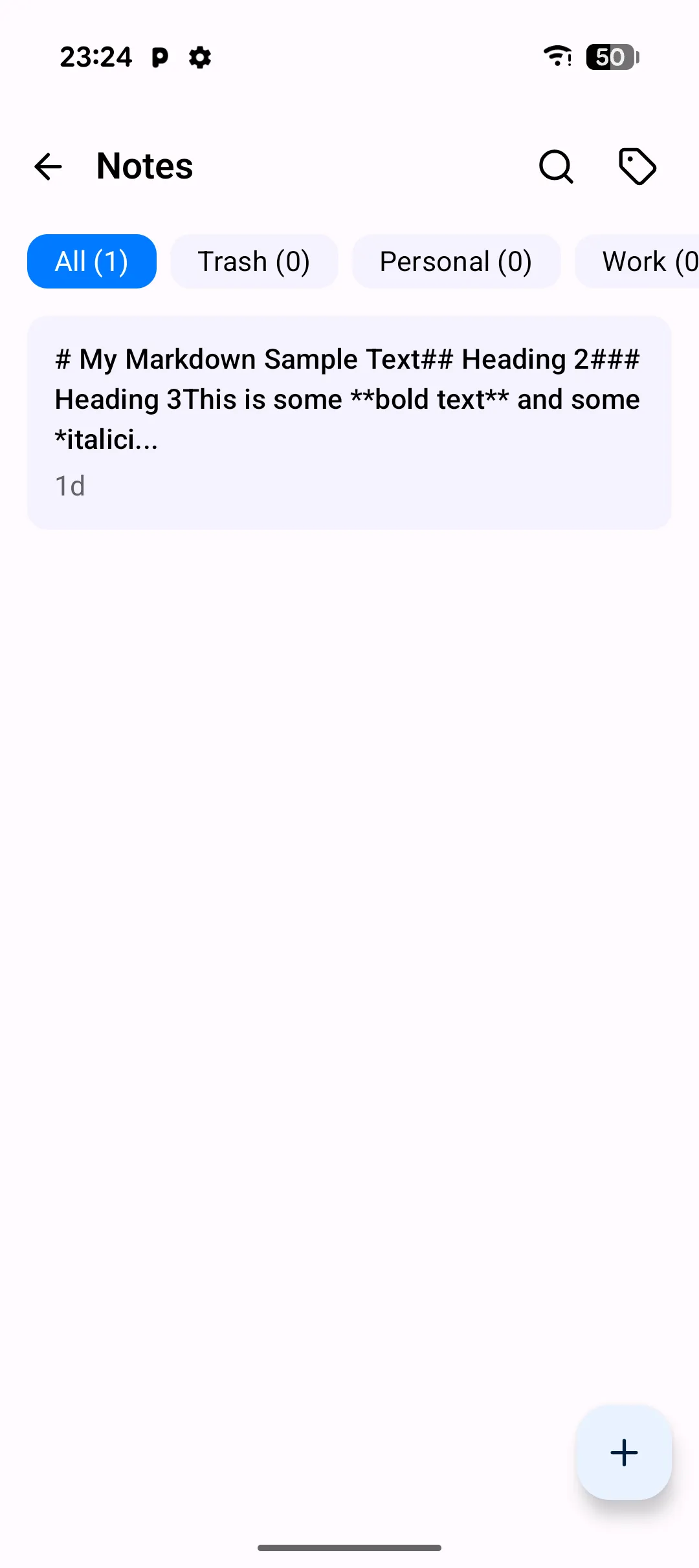
The Notes tab is PlainApp's built-in markdown editor. It's a lightweight place to keep code snippets, meeting notes, a journal, or anything else that fits in a text file — without bouncing between three different apps. Notes live on the phone, sync over your local network when you use the web dashboard, and never touch a cloud server you don't control.
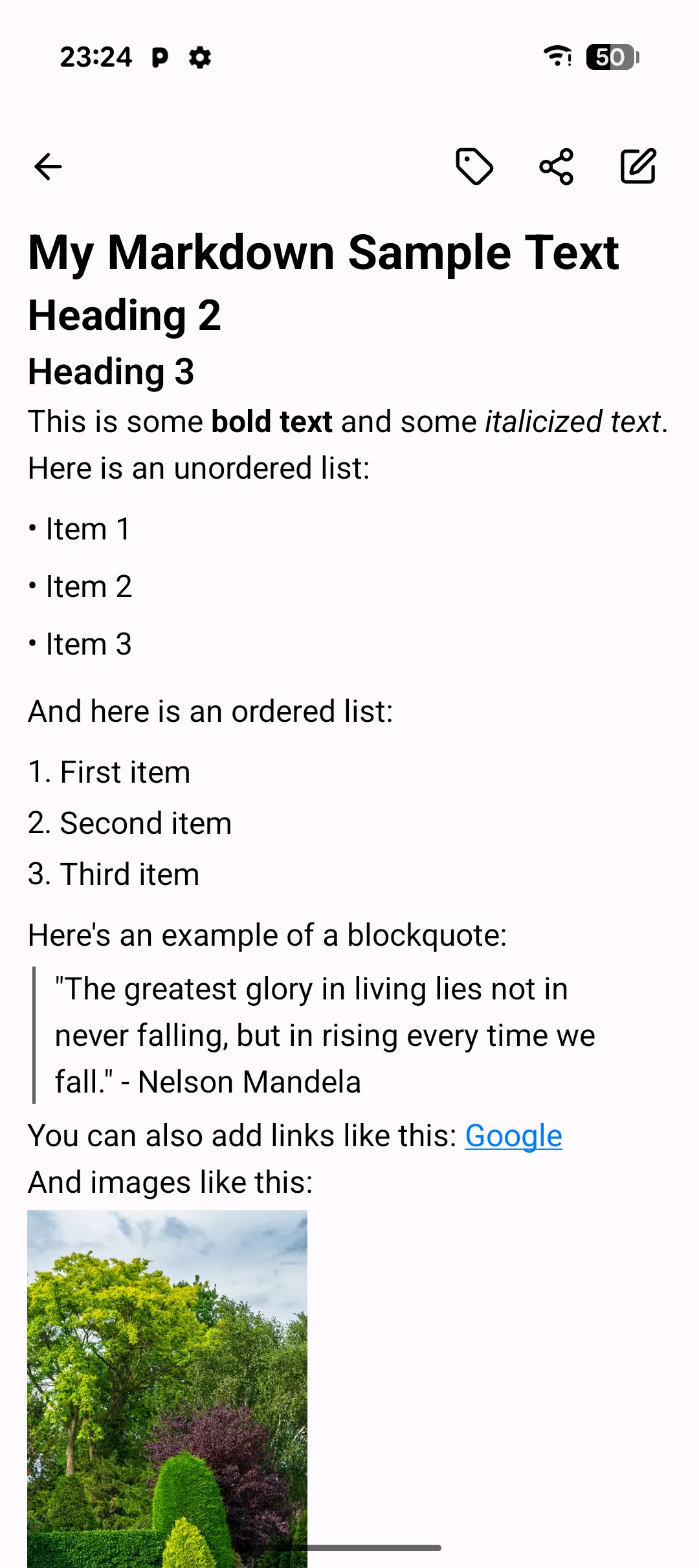
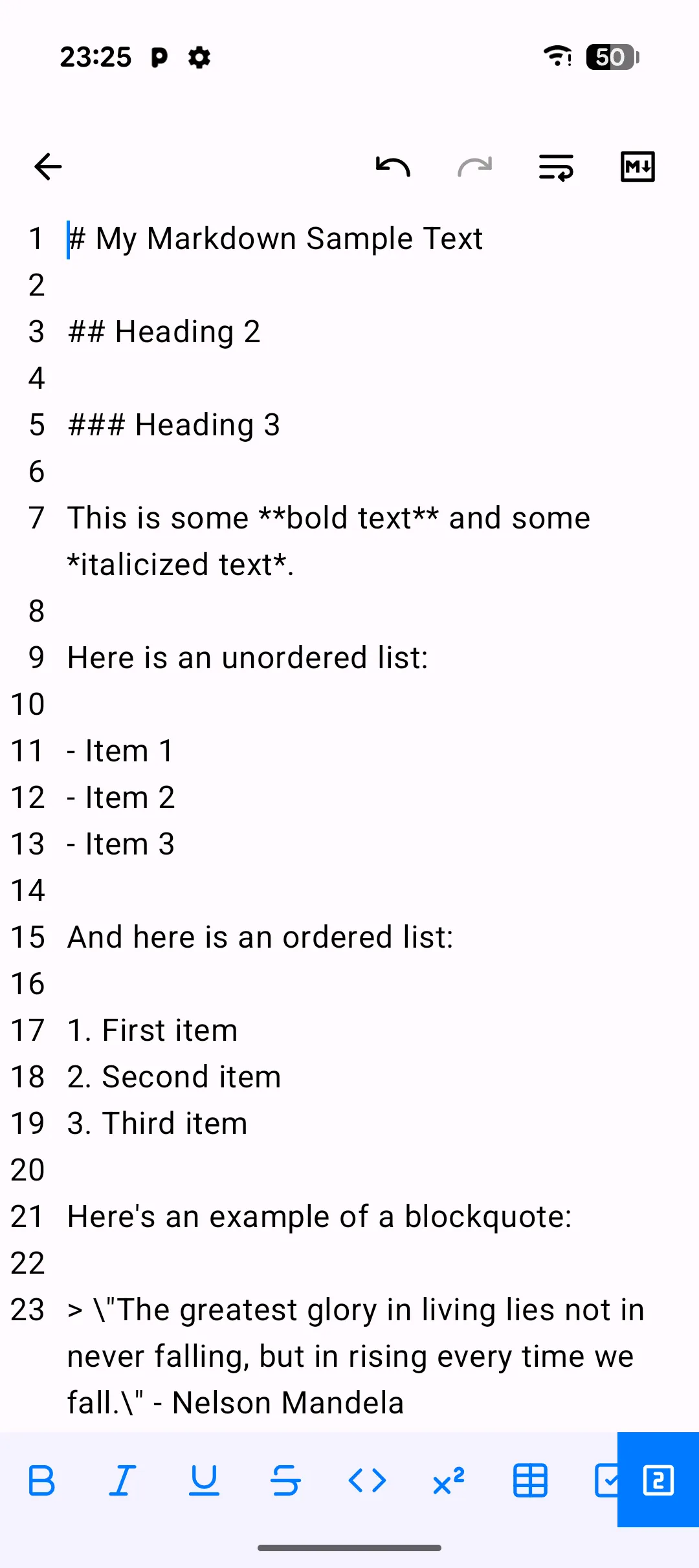
The editor follows Material 3 conventions, so the gesture vocabulary is the same as the rest of the app: long-press to multi-select, tap the FAB to create. A single tap flips the whole editor between raw markdown and a rendered preview — there's no split-screen mode, just a fast toggle so you can check your formatting without losing your place. The underlying file is plain text, readable in any editor if you ever stop using PlainApp.
Key capabilities
- Markdown editor with a preview toggle — write in plain markdown, then tap the preview icon to switch to rendered output. Supports headings, lists, code blocks, tables, links, and inline formatting.
- Undo/redo — dedicated buttons in the top app bar step backward and forward through your edit history within the current session.
- Tag organization — apply one or more tags to each note and filter the list from the chip row. Tags are color-coded and shared with the web dashboard.
- Full-text search — the search box in the top app bar scans note titles and bodies.
- Trash and restore — deleted notes move to a trash tab before permanent removal. Restore individually or in bulk.
- Multi-select bulk actions — long-press a note to enter selection mode, then bulk-tag, trash, or restore the selection at once.
- Auto-save, always — edits are saved automatically about 200ms after you stop typing. There's no save button and nothing to lose.
Walkthrough
- Open the Notes tab from the Home screen. The list shows your most recently edited notes, with the title, snippet, tags, and modified time.
- Tap the + button to create a new note. The editor opens with an empty title and a blank body, ready to type.
- Write markdown — use
#for headings,-for lists, triple backticks for code blocks. - Tap the preview icon to see the rendered version, and tap it again to go back to editing.
- Apply a tag from the chip row above the editor. Pick an existing tag or type a new one; tags save automatically as you back out of the note.
- Search across notes by tapping the search icon in the top app bar and typing a query. The list filters to notes whose title or body contains the term.
Tips & tricks
- Long-press a note to enter selection mode, then tap additional notes to bulk-tag or bulk-trash them together.
- Code blocks with a language hint (e.g.
```rust) get syntax highlighting in the preview. - If you need to get a note out as a
.mdfile, do it from the web dashboard — export isn't available on the phone itself yet. - Undo/redo only covers the current editing session — closing and reopening a note starts a fresh history.
Privacy & security notes
- Notes are stored in PlainApp's local app database on the phone, as plain text. Nothing is uploaded unless you explicitly connect via the web dashboard.
- Note content is never logged. Crash reports, if you opt in, contain only counts and timestamps — not body text.
- The Notes screen works fully offline. Creating, editing, tagging, and searching all function without a network connection.
Related features
- Markdown Notes in the Web Dashboard — the same note archive, with export to
.mdand image pasting, edited from a browser. - File Management on Android — browse and manage files exported from the web dashboard.
- Encrypted P2P Chat on Android — share a note's content with another PlainApp device over an encrypted channel.