
The Feeds tab is PlainApp's built-in RSS and Atom reader. Subscribe to blogs, news sites, podcasts, or any source that publishes a feed, and PlainApp will fetch new entries in the background. There's no intermediary server aggregating your subscriptions — the phone polls each feed directly, so your reading list stays private.
The reader view strips away publisher chrome and renders article content in a consistent Material 3 layout. Images, code blocks, and blockquotes come through cleanly; embedded scripts and trackers do not. Articles you've already read are marked automatically, and unread counts appear next to each feed in the sidebar.
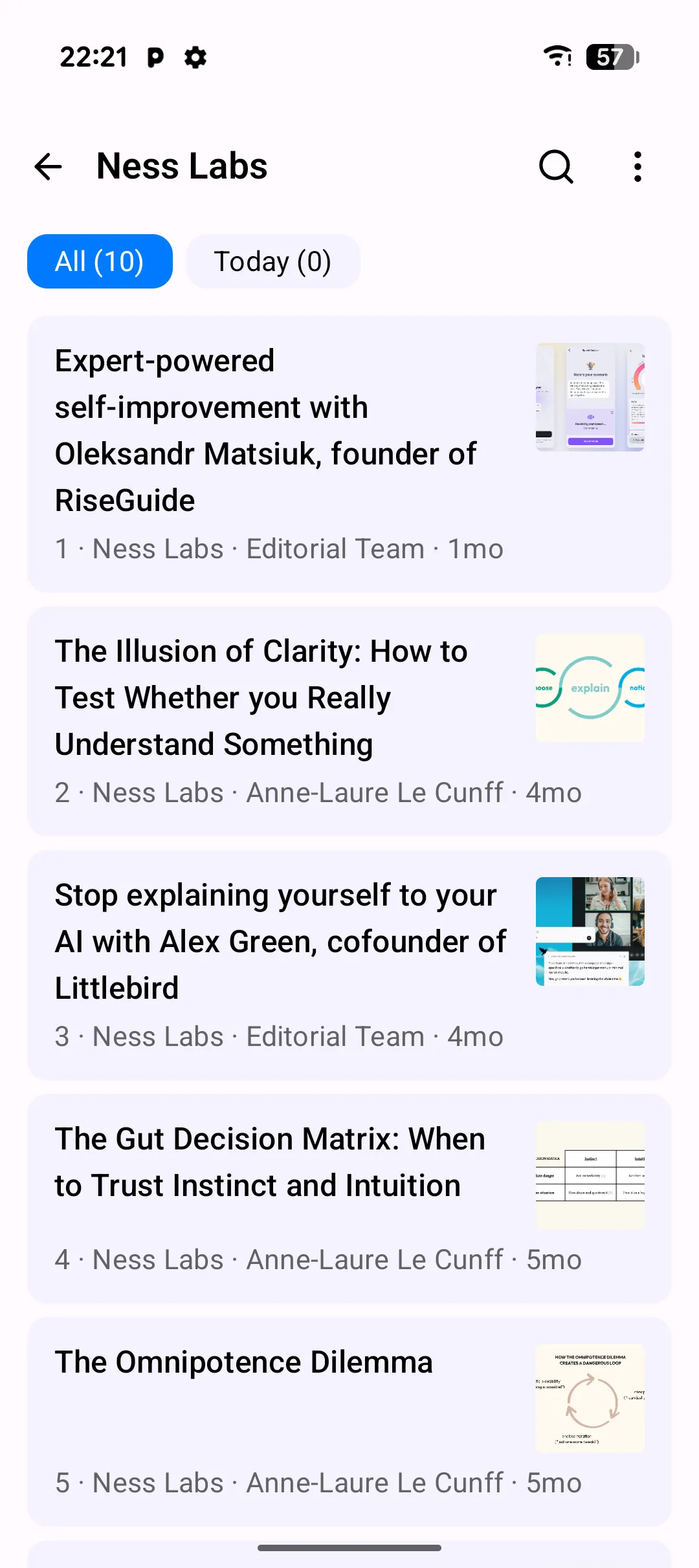
Key capabilities
- Feed list with unread counts — every subscription shows a live unread badge in the sidebar. Tap a feed to see only its entries, or tap All for a merged timeline.
- Clean reader view — articles open in a reader pane that strips ads, popups, and tracker pixels. Markdown-style formatting is preserved for code blocks and blockquotes.
- OPML import and export — bring your subscriptions over from another reader by importing an OPML file. Export your full subscription list to OPML at any time.
- Offline reading — once an entry is fetched, it's stored on-device. Read articles on the subway, on a flight, or anywhere without a connection.
- Dark mode — the reader follows the system theme by default and can be pinned to dark or light from the reader overflow menu.
- Today filter — tap Today in the sidebar to see only entries published since the start of the day.
Walkthrough
- Open the Feeds tab from the bottom navigation bar. The merged All timeline shows recent entries across every subscription.
- Tap an article to open it in the reader view. The header shows the source feed, title, author, and publish time.
- Read in the reader view — scroll through the body, tap links to open them in your default browser, and use the overflow menu to share or tag the article.
- Swipe to the next article — swipe left or right inside the reader to move between entries without returning to the list.
- Add a new feed by tapping the + button in the top app bar, choosing Add subscription, and pasting the feed URL. Toggle auto-fetch full content if you want PlainApp to pull the complete article instead of just the summary.
- Import OPML from the same + menu — choose Import OPML, pick the
.xmlfile from your file system, and PlainApp adds every feed in the file, including nested categories.
Tips & tricks
- Long-press a feed in the sidebar to rename it, change its URL, or unsubscribe. Renames persist across OPML export.
- Tap the Today filter in the sidebar when you only have time for fresh content. The badge shows how many new entries arrived today.
- Tag individual articles as you read them — tags apply per-entry, not per-feed, so you can pull together a "must read" list across different subscriptions.
- Feeds refresh on a schedule set in Settings → Sync. You can also pull-to-refresh in the feed list to fetch on demand.
Privacy & security notes
- PlainApp fetches feeds directly from each publisher. There is no relay or proxy in the middle, so publishers see your phone's IP address, not a centralized aggregator's.
- Article content is cached on-device for offline reading. Cache size is capped in Settings → Sync; older entries are pruned automatically.
- Feed subscriptions are never logged or sent to a third party. The OPML file you export contains only the URLs you subscribed to.
Related features
- RSS Reader in the Web Dashboard — the same subscription list, read from a browser on your laptop.
- Markdown Notes on Android — clip an article into a note to keep a permanent copy after it falls out of the feed.
- File Management on Android — manage the OPML files you import and export.