
The Screen Mirror view in the web dashboard renders your Android phone's screen in a browser tab — and it's the only place this feature has a real user interface. On the phone side there's no dedicated Screen Mirror screen; a background service starts streaming as soon as you begin a session from the browser, and every control lives here.
Because the stream is decoded with WebCodecs and painted to a <canvas>, the page must be served in a secure context (HTTPS or localhost). PlainApp's local server already meets this requirement — but if you've somehow loaded the dashboard over plain HTTP on a non-localhost address, the page shows a needs HTTPS prompt with a link to the secure URL instead of trying to start the stream.
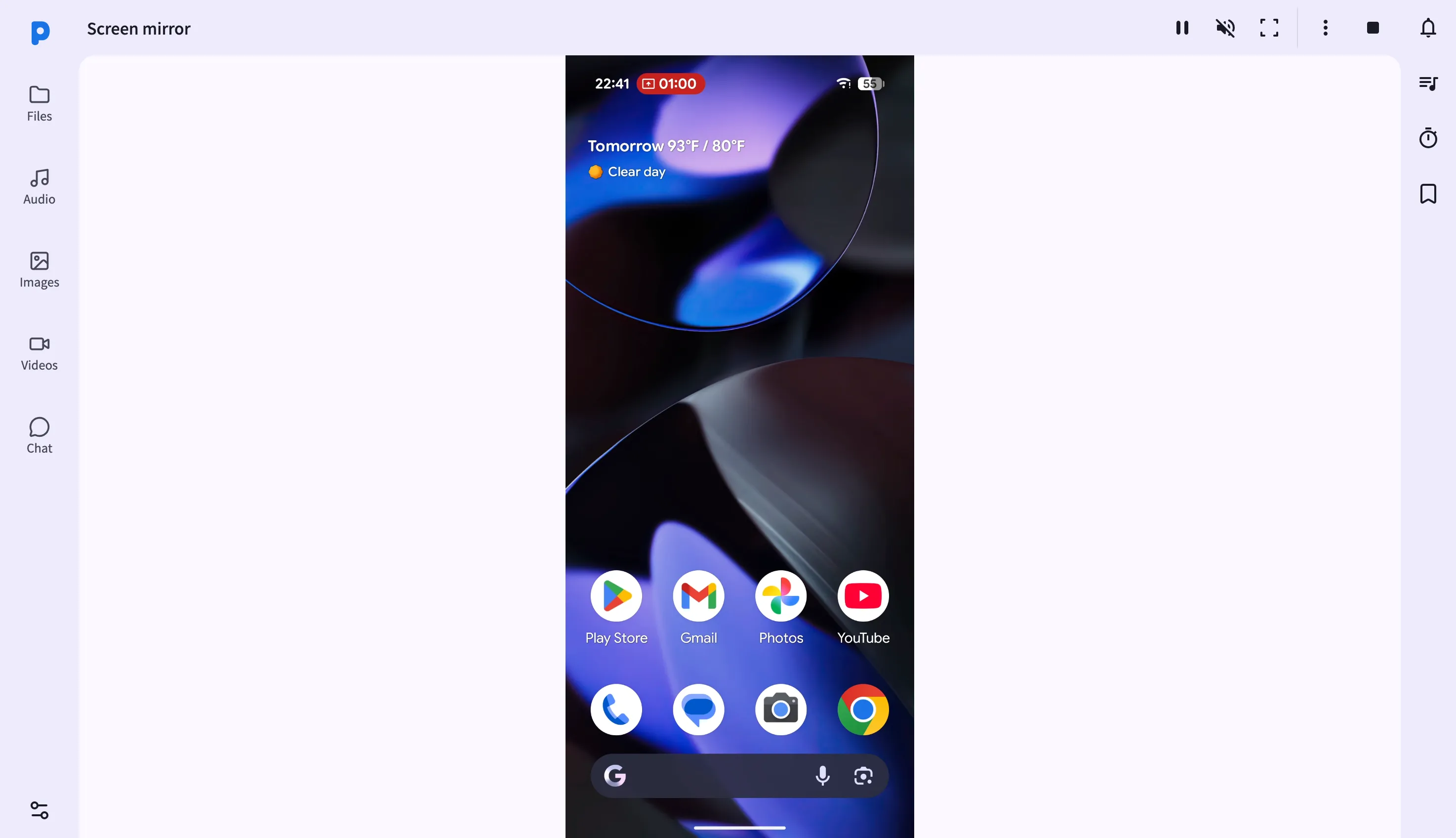
Key capabilities
- Live canvas mirror — frames are decoded with WebCodecs and painted to a
<canvas>element. No plugin, no native client — just the browser. - Full remote control — once control is enabled, clicking, dragging, and scrolling on the canvas is translated into real taps, long-presses, swipes, and scrolls on the phone, normalized to the actual screen coordinates. Dedicated buttons send Back, Home, and Recents.
- Fullscreen mode — expand the canvas to fill the screen; press
Esc(or the toolbar toggle) to exit. - HD / Smooth quality modes — switch quality mid-session: HD prioritizes sharpness, Smooth trades resolution for lower latency on congested Wi-Fi.
- Screenshot capture — one click downloads a
.pngof the current frame. - Session recording — record the canvas locally to a video file, with a running recording timer in the toolbar.
- Audio mirroring — request audio passthrough from the phone and mute/unmute it independently in the browser.
- Relaunch and pause — pause the stream to stop consuming bandwidth without ending the session, or relaunch the phone's mirror service if it hangs.
Walkthrough
- Open the Screen Mirror page from the dashboard sidebar. If the phone isn't currently mirroring, click Start to request that the phone begin casting.
- View the live mirror — once the phone grants the screen-capture permission, frames appear on the canvas within a second or two.
- Enable remote control from the toolbar, then click, drag, or scroll on the canvas to interact with the phone as if you were holding it — plus dedicated Back/Home/Recents buttons.
- Switch to fullscreen by clicking the fullscreen button; press
Escto return to the dashboard layout. - Change quality with the HD/Smooth toggle in the toolbar — the switch takes effect on the next keyframe.
- Capture a screenshot or start a recording from the toolbar, and Stop when you're done to end the session.
Tips & tricks
- Mute audio from the toolbar if you're mirroring in a shared space — it only affects your browser, not the phone's speaker.
- Pause without disconnecting by clicking the play/pause button — useful when you need to read a static screen without burning bandwidth on updates.
- Relaunch the app from the toolbar if the mirror service on the phone has hung — this restarts it without rebooting the phone.
- Remote control coordinates are normalized to the actual video resolution, so control still lines up correctly even if you've resized the browser window or gone fullscreen.
Privacy & security notes
- The web dashboard is served over HTTPS with a self-signed certificate, with all traffic further encrypted with XChaCha20-Poly1305 layered on top of TLS.
- The web dashboard binds to your local network only — it is not reachable from the internet unless you explicitly set up port forwarding.
- The WebCodecs API requires this secure context — the page shows a needs HTTPS prompt if it's ever missing.
- Remote control input is only accepted while you've explicitly enabled it for the session — closing or stopping the mirror immediately revokes it.
Related features
- Photos, Videos & Music in the Web Dashboard — browse media files instead of a live screen.
- File Management in the Web Dashboard — pull screenshots and recordings off your computer.
- App Manager in the Web Dashboard — another way to manage the phone remotely from a browser.