
PlainApp bundles a handful of single-purpose utilities alongside its bigger features: a Pomodoro Timer for focus sessions, a Sound Meter for ambient noise readings, and a Scanner for QR codes and barcodes with a persistent history. There's no dedicated "Tools hub" screen — Pomodoro and Sound Meter are cards on the Home grid, and the Scanner opens from other entry points (like scanning a pairing code). Each runs entirely on-device: no web round-trip, no account, no cloud dependency.
They share the same Material 3 scaffolding as the rest of the app, so the navigation and settings patterns are familiar from day one.
Key capabilities
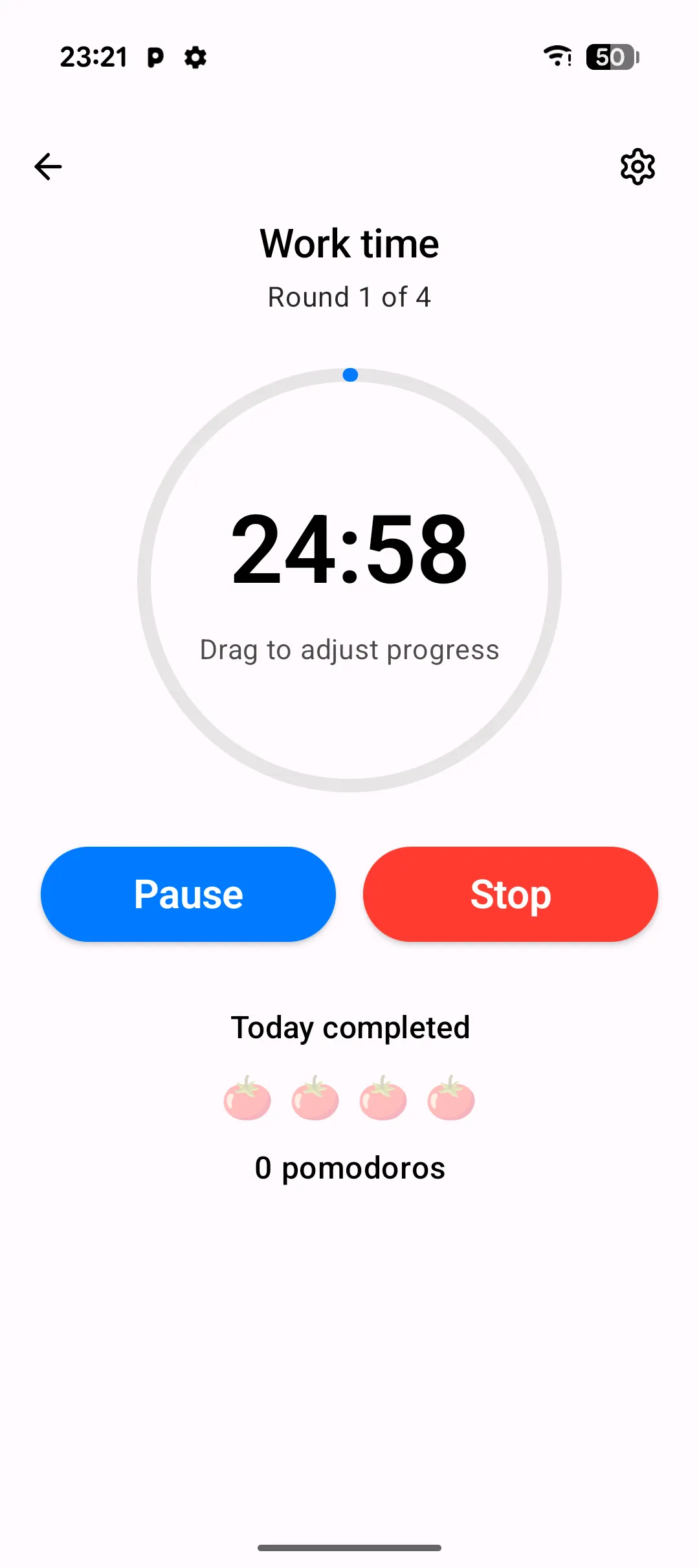
- Pomodoro Timer with configurable cycles — set work duration, short break, long break, and how many pomodoros run before a long break. A round counter shows progress through the current cycle, and a today-completed strip renders one tomato per finished session.
- Pomodoro notifications and completion sound — toggle a notification on phase changes and an optional sound on completion. The sound can be a custom audio file picked from your storage.
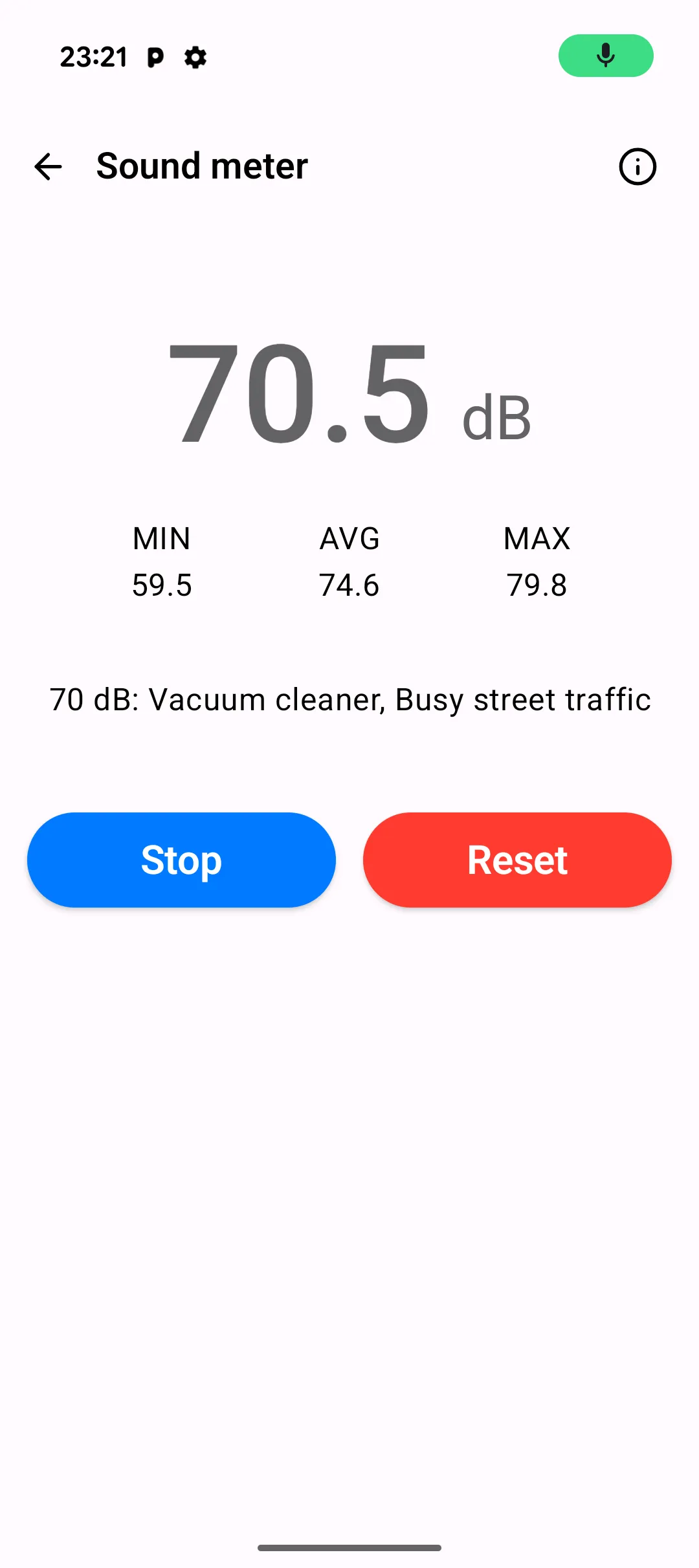
- Sound Meter with live stats — the current decibel reading is shown large in the center, with running min, avg, and max values alongside. A reference dialog lists what each decibel range corresponds to in everyday terms.
- Scanner with camera and image decode — the camera view fills the screen with an animated scan line and corner guides. A gallery button lets you decode a QR code from a saved image instead of the live camera.
- Scan history — every successful scan is appended to a local history list, deduplicated and newest-first. Open the history from the scanner's top app bar; swipe or tap to delete individual entries.
Walkthrough
- Start a Pomodoro session — open the Pomodoro Timer card from the Home screen and tap Start. The current phase (work, short break, long break) and round counter update as the session progresses; a tomato is added to the today-completed strip when a work interval finishes.
- Take a Sound Meter reading — open the Sound Meter card. The first time, grant the
RECORD_AUDIOpermission when prompted. Tap Start to begin readings; the large number, min/avg/max row, and a textual description of the current decibel range update live. - Scan a QR code — open the Scanner and point the camera at a code. The scan line animates across the framed area; on detection the result appears in a bottom sheet and is saved to history.
- View scan history — tap the history icon in the scanner's top app bar to open the history page. Each entry is selectable; delete one by tapping its delete action.
Tips & tricks
- Open the Pomodoro settings dialog from the top app bar to tune durations and pick a custom completion sound. Settings persist across sessions.
- In the Sound Meter, tap the info icon to open the decibel reference dialog — a selectable list of ranges from a whisper to a rock concert, useful for context when reading the numbers.
- The Scanner recognizes PlainApp pairing QR codes automatically and routes them to the pairing flow instead of the generic result sheet.
- In the Sound Meter, Reset clears the running min/avg/max back to zero without stopping the session, so you can re-baseline a measurement mid-run.
- Bookmarks are managed entirely from the web dashboard — the phone stores and syncs them, but there's no bookmarks screen on Android yet.
Privacy & security notes
- The Sound Meter uses the
RECORD_AUDIOpermission. Audio is processed in memory to compute a decibel value; no audio is recorded, stored, or transmitted. - Scan history is stored locally in app preferences. It never leaves the device unless you explicitly copy a result out of a history entry.
- Both tools work fully offline. Neither requires a network connection or an account.
Related features
- Built-in Tools in the Web Dashboard — the Pomodoro Timer again, plus the Bookmarks Manager that's exclusive to the web dashboard.
- Markdown Notes on Android — capture longer-form notes alongside a scan result.
- File Management on Android — the on-phone file browser for navigating storage volumes.