
The Tools view in the web dashboard has two utilities: a Pomodoro Timer that mirrors the Android one, and a Bookmarks Manager that's actually more capable here than anywhere else in PlainApp — bookmarks have no dedicated screen on the phone at all, so the browser is where you organize them.
Open the dashboard URL shown in the app, pick a tool, and it opens in a side panel — no separate page navigation required.
Key capabilities
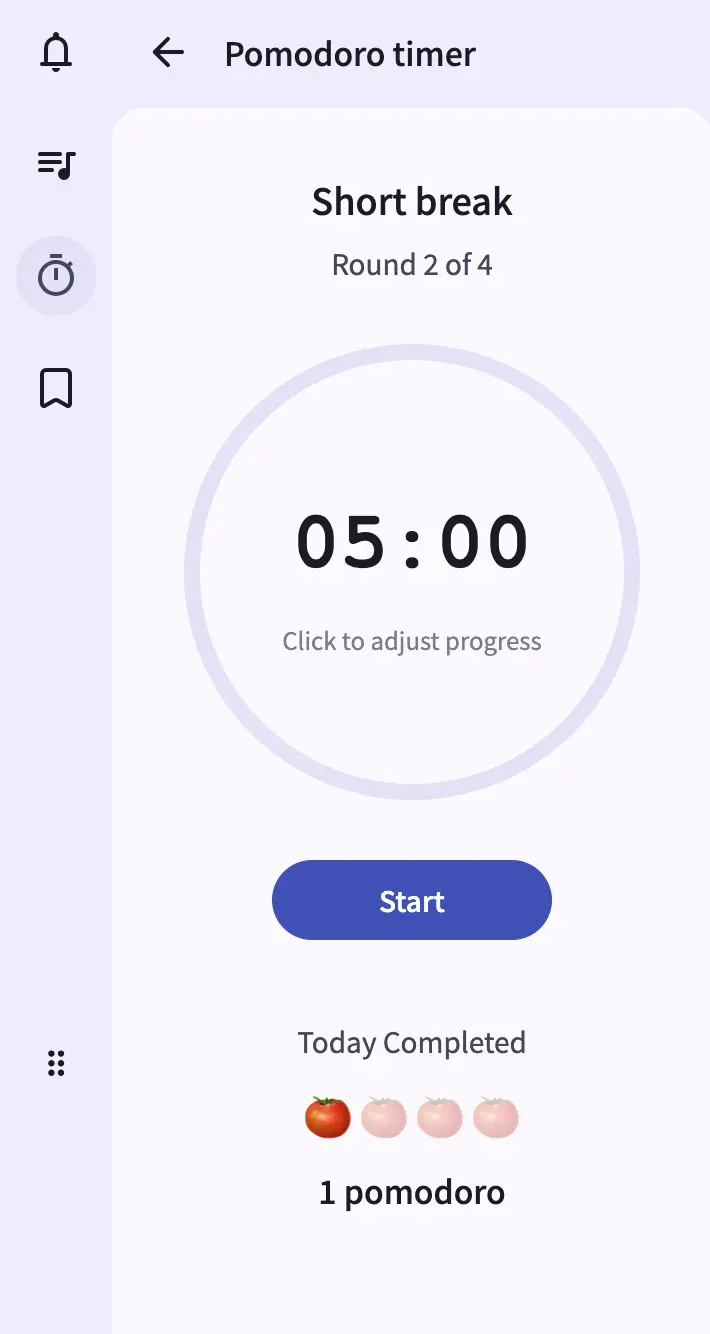
- Pomodoro Timer with circular progress ring — an SVG ring drains as the session progresses, with the current phase, round counter, and remaining time in the center. Start, pause, resume, and stop controls sit below the ring.
- Click-to-adjust timer — click anywhere on the progress ring to nudge the remaining time up or down before or during a session.
- Today-completed stats — a tomato strip below the timer fills in as you finish work intervals, with a count label. The strip always shows at least four slots so the layout doesn't jump.
- Bookmarks in groups — organize links into collapsible groups; the collapsed/expanded state of each group persists across sessions.
- Pin and sort bookmarks — pin frequently used links to a dedicated section at the top, and sort the rest by name (A–Z) or by last-clicked (most recent first).
- Import and export — bring in a bookmarks HTML export from a browser, or export PlainApp's set the same way, for backup or migration.
Walkthrough
- Open the Tools view from the dashboard. Each tool opens in a quick-content panel that slides in from the right.
- Start a focus session on the Pomodoro card — the ring begins draining, the phase label reads Work, and the round counter shows 1 of N. Pause, resume, or stop with the buttons under the ring.
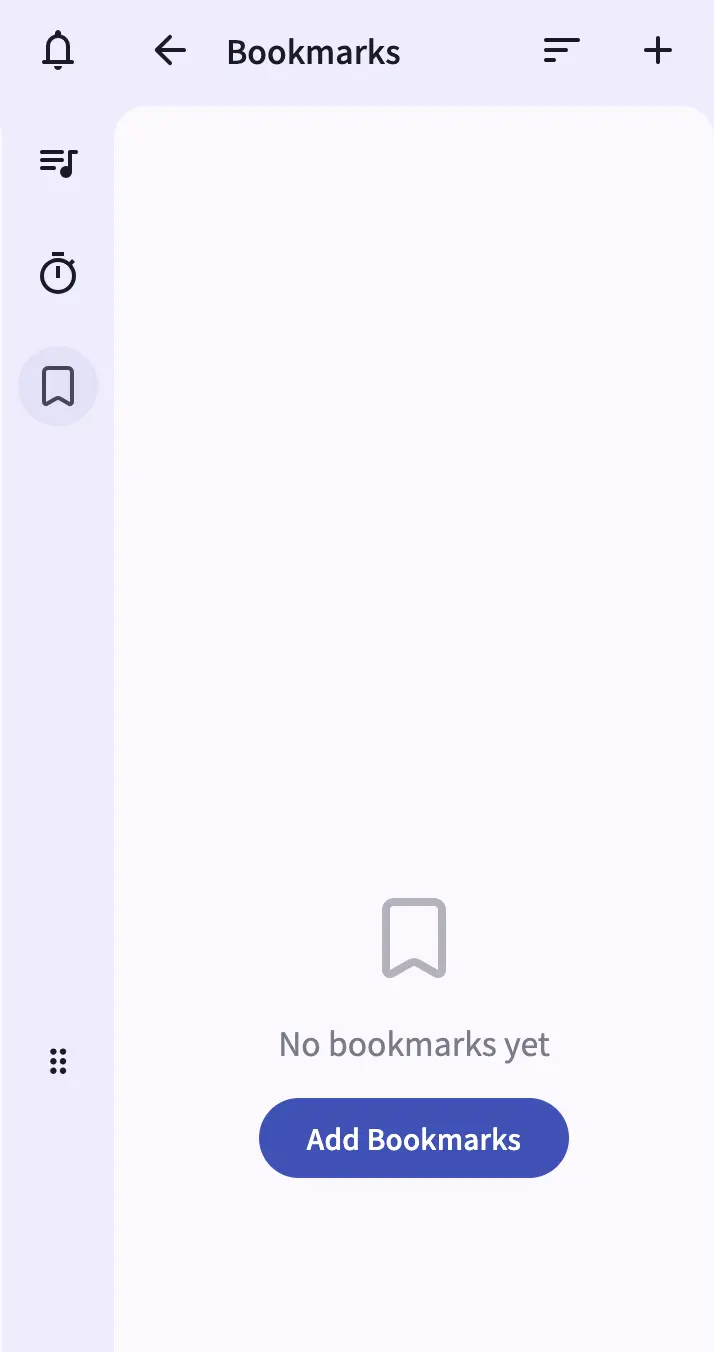
- Add a bookmark — open the Bookmarks card and use the add icon. Choose Add bookmarks to create a new entry, or Add bookmark group to create a container for related links.
- Pin and sort — use the pin action on any bookmark to lift it into the pinned section, and the sort dropdown to reorder the rest by name or by last-clicked.
- Collapse a group you don't need right now by clicking its header — the state is remembered next time you open the panel.
- Import or export your bookmark set from the add menu, useful for moving between devices or keeping a backup.
Tips & tricks
- Click the Pomodoro ring to adjust time: when a session is running, click on the ring to shift the remaining time. The hint text under the time display tells you when adjustment is available.
- Watch the notification warning: if Pomodoro notifications are enabled but the browser lacks permission, a warning indicator appears next to the title with a dropdown explaining the issue and a button to fix it.
- Since bookmarks only live on the web dashboard today, treat the export option as your backup — there's no separate Android copy to fall back on.
Privacy & security notes
- The web dashboard is served over HTTPS with a self-signed certificate, with all traffic further encrypted with XChaCha20-Poly1305 layered on top of TLS.
- The web dashboard binds to your local network only — it is not reachable from the internet unless you explicitly set up port forwarding.
- Bookmarks and Pomodoro state are stored on the phone; the browser is a remote control for both.
Related features
- Built-in Tools on Android — the same Pomodoro Timer, plus the Sound Meter and Scanner that are exclusive to the phone.
- Markdown Notes in the Web Dashboard — write longer-form notes in the browser with a live preview.
- File Management in the Web Dashboard — the desktop file manager for the phone's storage volumes.